
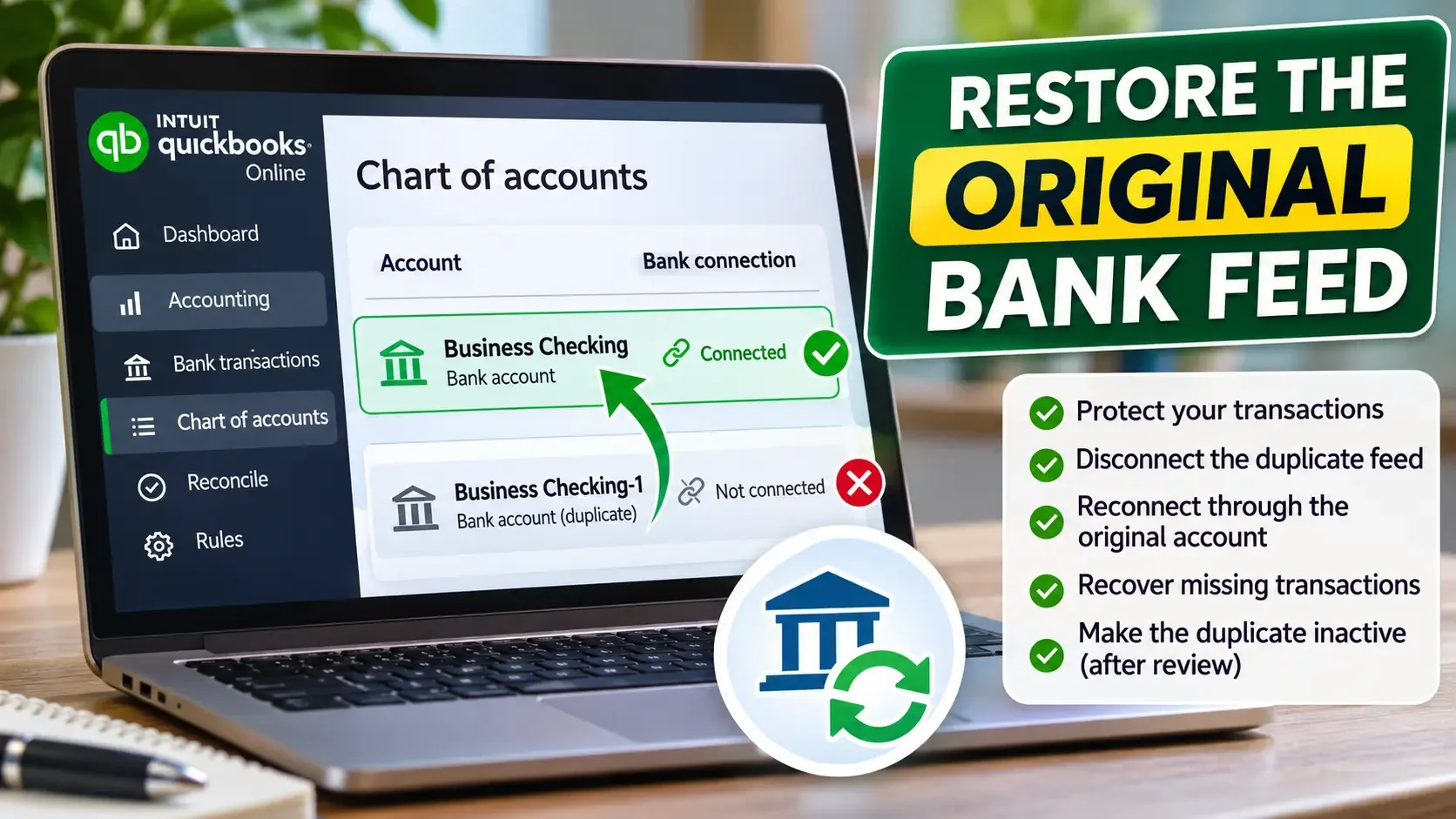
If QuickBooks Online creates a duplicate bank account after reconnecting, open the Chart of Accounts and compare the original and newly created account registers. If your historical transactions remain in one account while recent bank downloads arrive in another, QuickBooks may have connected your bank to the wrong accounting account.
The recommended repair is to disconnect the unintended bank feed and reconnect through the original Chart of Accounts entry. Before doing so, check whether the duplicate contains pending downloads, posted transactions or an opening balance that needs to be resolved.
Identify the Duplicate Account
QuickBooks Online can interpret a reconnection as a new banking connection instead of restoring the previous one. This can happen when reconnecting through the Fix It option, resulting in another accounting account with its own register and potentially a separate opening balance.
Intuit addresses this exact problem in its duplicate bank account reconnection guidance, recommending that users reconnect through the existing Chart of Accounts entry.
Open Settings → Chart of accounts and select View register beside each account. Compare their transaction histories and available bank account identifiers against your actual bank statement to establish which account should remain.
The original account generally contains established accounting records, while the duplicate contains activity received since reconnection. Once you confirm that both represent the same real-world bank account, determine which recovery path applies.
| Duplicate account condition | Required action |
|---|---|
| Empty account with zero balance | Proceed with disconnection and reconnection |
| Pending downloads only | Preserve banking activity before disconnecting |
| Posted transactions | Review and correct affected records |
| Unexpected opening balance | Investigate and resolve the balance |
| Reconciled or payment-linked transactions | Obtain accounting assistance before changing records |
Avoid merging the accounts as a shortcut. Intuit's account merging instructions warn against merging accounts connected to online banking. Merging is irreversible and can affect access to reconciliation history.
Protect Existing Transactions
Before changing either connection, establish a record of your current accounting position. Save the affected bank statements, both account registers and previous reconciliation reports.
Record the opening balance and its date for each account, the register balances on a consistent reporting date and the ending balance from the original account's most recent completed reconciliation. These figures will help you detect unexpected accounting changes during recovery.
Next, open All apps → Accounting → Bank transactions and select the duplicate account. Examine the Pending and Posted tabs to identify which downloaded transactions still require review and which have already entered your books.
Disconnecting a bank feed removes pending downloads, and your bank may not resend them when you reconnect. Obtain a downloadable transaction file from your bank covering the entire affected period before proceeding.
Intuit's disconnection precautions also recommend checking the account balance and resolving connection errors. If the duplicate has an unexplained nonzero balance, obtain accounting assistance before disconnecting rather than creating an adjustment simply to make it zero.
Pause Automatic Posting
If your bank rules automatically post transactions, temporarily disable the relevant rules before recovering banking activity. Otherwise, downloaded transactions may enter your books before you can determine whether corresponding records already exist.
Open All apps → Accounting → Rules, locate the affected rules and select Disable from the Actions dropdown. Record which rules were enabled originally, including rules that apply to all bank accounts, so you can restore them later.
Intuit's bank rule management instructions explain how to disable and re-enable individual rules. If you discover incorrect account or category settings, review the relevant QuickBooks bank rule categorization problem before restoring automatic posting.
Review Posted Transactions
Determine whether each affected download created a new accounting entry or matched an existing record. Undoing these two types of transactions can produce different results.
For an incorrectly created, unreconciled standalone expense, preserve its payee, category, memo, transaction splits and attachments before making changes. Open the duplicate account's Posted tab, locate the unwanted transaction and select Undo from the Action column.
Check the register afterward to confirm that the unwanted entry has been removed and its downloaded item has returned to Pending. You can then recover the transaction through the original account without intentionally retaining the incorrect entry.
For an incorrect match, inspect the linked transaction before selecting Undo. As explained in Intuit's transaction undo and unmatching guidance, unmatching separates a bank download from its associated accounting record.
Do not routinely undo reconciled transactions, transfers, invoice payments or bill payments. These records may affect other accounts or payment relationships and require individual accounting review.
Resolve pending items before disconnecting wherever this can be done correctly. If accepting them through the duplicate account would create inaccurate records, preserve their details and confirm that the banking activity can be recovered manually. Seek assistance if you cannot establish a safe recovery path.
Disconnect the Duplicate Feed
Once the duplicate's affected transactions and balances have been reviewed, disconnect its banking connection rather than removing the accounting account. The following procedure applies to the U.S. QuickBooks Online interface.
Open All apps → Accounting → Bank transactions.
Select the duplicate bank account tile.
Select the pencil icon.
Choose Disconnect account.
Confirm by selecting Disconnect.
If the disconnection option is unavailable while QuickBooks is downloading transactions, allow the update to finish before trying again. If the account displays a connection error, address it first unless the error specifically directs you to disconnect.
Afterward, the duplicate should no longer receive automatic bank downloads, but its accounting register should remain accessible. Compare its remaining balance and posted records with the information saved before disconnection, and investigate any unexpected changes.
Reconnect the Original Account
Initiating the connection from the original Chart of Accounts entry is the essential part of this repair. It allows you to associate your bank with the account that already contains your historical records.
Open Settings → Chart of accounts.
Locate the original bank account.
Open the dropdown beside View register.
Select Connect bank.
Search for your financial institution and complete its authentication process.
Select the correct bank account.
Choose the original QuickBooks accounting account instead of creating a new one.
Complete the connection by selecting Connect and Done.
If QuickBooks offers a starting date for downloading transactions, choose a date covering the missing banking activity. Establish the affected period using your bank statement and original register rather than relying solely on the date the connection failed.
If the original account is unavailable for selection, do not choose Add New. Check whether the account is active, whether it already has a banking connection and whether its account type is appropriate.
If the account already receives transactions correctly, another connection may not be necessary. If it remains connected but displays an error, address that existing connection instead of repeatedly creating replacement accounts.
After reconnecting, inspect the original register for any newly generated opening balance entry. Compare it with the opening balance information recorded before the repair.
Recover Affected Transactions
Compare the restored original bank feed and register against your bank statement for the affected period. Some transactions may have returned automatically, while others may already exist in your accounting records.
Use the following distinctions to prevent the recovery from creating additional bookkeeping errors.
| Recovered banking activity | Appropriate action |
|---|---|
| Correct unreconciled record exists | Match the downloaded transaction |
| Correct reconciled record exists | Exclude the confirmed duplicate download |
| Transaction is genuinely missing | Create the appropriate accounting record |
| Record exists in the duplicate account | Review and correct the existing record |
| Payment or transfer already recorded | Preserve the underlying accounting relationship |
A missing match suggestion does not necessarily mean the transaction is absent from your books. If the record already exists, follow the instructions for finding an existing transaction that QuickBooks is not matching before creating a new entry.
For a confirmed duplicate of a correctly reconciled transaction, select the redundant downloaded item in the Pending or For review tab and choose Exclude. Intuit's bank transaction matching guidance specifically addresses this situation.
If you exclude the wrong transaction, locate it in the Excluded tab and select Undo to return it for review. Excluding a downloaded item is different from deleting an existing accounting entry.
Import Missing Transactions
If automatic downloads do not recover all the necessary banking activity, use the transaction file obtained from your bank. QuickBooks supports formats including QBO and CSV.
Open All apps → Accounting → Bank transactions and access the appropriate upload option for your account's current connection status.
| Account status | Upload option |
|---|---|
| Connected to online banking | Link account → Upload from file |
| Not connected to online banking | Upload from file or Or upload transactions manually |
Select the downloaded file and choose your original QuickBooks account as the destination. Follow the import prompts, verify the date and amount mapping where required and select the transactions needed for recovery.
Intuit's manual bank transaction upload instructions cover both connected and disconnected accounts.
Check the original register and pending downloads before importing. Upload only the necessary missing items and review their amounts and payment directions before posting them.
A Practical Recovery Example
Suppose your original account is named Business Checking, but reconnecting creates Business Checking-1. During the interruption, the duplicate receives 12 transactions, including eight pending items and four posted items.
An illustrative investigation identifies four different transaction conditions, each requiring its own recovery action.
| Affected transactions | Quantity | Recovery action |
|---|---|---|
| Pending items already recorded correctly | 3 | Preserve existing records |
| Pending items missing from the books | 5 | Recover through download or import |
| Incorrectly created standalone expenses | 2 | Undo safely and recreate correctly |
| Payment-linked records | 2 | Review and correct individually |
| Total | 12 | Account for every banking event |
Before disconnecting Business Checking-1, you document all 12 transactions and preserve the accounting details of the two expenses. The payment-linked records are reviewed separately so their underlying relationships remain accurate.
After reconnecting Business Checking, four of the seven transactions requiring recovery return automatically. You manually import the remaining three and restore their appropriate accounting details.
Once the two payment-linked records have also been corrected, all 12 banking events are accounted for. The three existing records remain intact, seven transactions have been recovered correctly and two payment-linked records have been resolved.
This is a more reliable recovery test than counting newly downloaded transactions. Compare each affected banking event against its corresponding accounting record and identify any unexplained differences.
Resolve the Duplicate Balance
A newly created bank account may contain an automatic opening balance even when no ordinary business transactions have been recorded through it. Disconnecting the feed does not necessarily remove that accounting entry.
Open the duplicate account's register and locate its opening balance transaction, which may be identified by Opening Balance Equity. Compare its date and amount with the original register and the information saved before disconnection.
Consider this illustrative example, assuming no outstanding or additional transactions affect the balances.
| Accounting record | Amount |
|---|---|
| Actual bank balance | $8,400 |
| Correct original account balance | $8,400 |
| Erroneous duplicate opening balance | $8,400 |
| Combined recorded cash | $16,800 |
| Potential cash overstatement | $8,400 |
In this situation, the same real-world funds are represented twice in the accounting records. The duplicate opening entry needs to be investigated rather than treated as genuine additional cash.
Intuit's opening balance management instructions explain how to locate and edit an opening balance through the account register. However, the appropriate correction depends on the transaction's purpose, reconciliation status and associated accounting activity.
Once your accountant confirms the required correction, compare the Balance Sheet report before and after the change using the same reporting date. Do not modify the original account's opening balance or create an arbitrary journal entry merely to eliminate the duplicate balance.
Why a Zero Balance Is Not Enough
A duplicate account can have a zero balance while still containing incorrectly recorded transactions. For example, a $500 deposit and a $500 expense could offset each other, even though both belong in the original bank account.
Check the duplicate's individual transactions as well as its net balance. The account should only be retired after its affected accounting records have been properly resolved, not simply because the displayed balance is zero.
Retire the Duplicate Account
Once the original connection is working, the affected transactions have been resolved and the duplicate has a genuine zero accounting balance, you can remove it from active use.
Open Settings → Chart of accounts, locate the duplicate and choose Make inactive from its Action dropdown. Verify the account name carefully before confirming the change.
Intuit's account inactivation instructions explain that inactivating a nonzero balance-sheet account creates an automatic adjustment involving Opening Balance Equity.
Reactivating the account later does not automatically reverse that adjustment. Making the duplicate inactive should therefore follow the accounting corrections rather than serve as a substitute for them.
Confirm the Repair
Return to Bank transactions and update the original account. When new banking activity becomes available, confirm that it arrives in the original feed and does not generate another accounting account.
Next, compare the affected transactions with your bank statement and the records saved before disconnection. Each banking event should be correctly accounted for, with no unexplained missing or duplicate entries.
Open Settings → Reconcile → History by account and select the original account. Confirm that its previous reconciliation reports remain available and compare them with your saved reports.
During your next reconciliation, verify that the beginning balance agrees with the previous reconciled ending balance. Investigate unexplained discrepancies instead of forcing an adjustment, following Intuit's account reconciliation instructions.
The final Balance Sheet should not contain an unexplained cash increase or adjustment resulting from the duplicate account. Once these checks are complete, restore the previously disabled bank rules after verifying that their account settings remain correct.
If Another Duplicate Appears
Some QuickBooks users have reported repeated duplicate account creation despite attempting to reconnect through their existing accounts. The documented Chart of Accounts procedure may therefore not resolve every banking connection problem.
If several duplicate accounts exist, inspect each one separately. Empty, zero-balance duplicates may require only disconnection and eventual inactivation, while accounts containing banking activity require the transaction and balance checks described above.
If reconnecting through the original account continues to create duplicates, stop repeating the process. Collect the financial institution's name, original and duplicate account names, masked account identifiers, relevant error messages and the date the problem began.
When contacting QuickBooks Support, explain that authentication succeeds but the connection is being assigned to a newly created accounting register rather than the original account. Do not include banking passwords or authentication codes in your support request.
While the connection remains unresolved, you can maintain the original account through the manual transaction upload procedure. This preserves bookkeeping continuity without repeatedly creating unnecessary accounting accounts.
Research disclosure: This guide is based on official Intuit documentation and reported QuickBooks Online banking problems. The recovery examples are illustrative and the procedures have not been independently tested in a live QuickBooks account. Interface labels may vary by region and software version.