
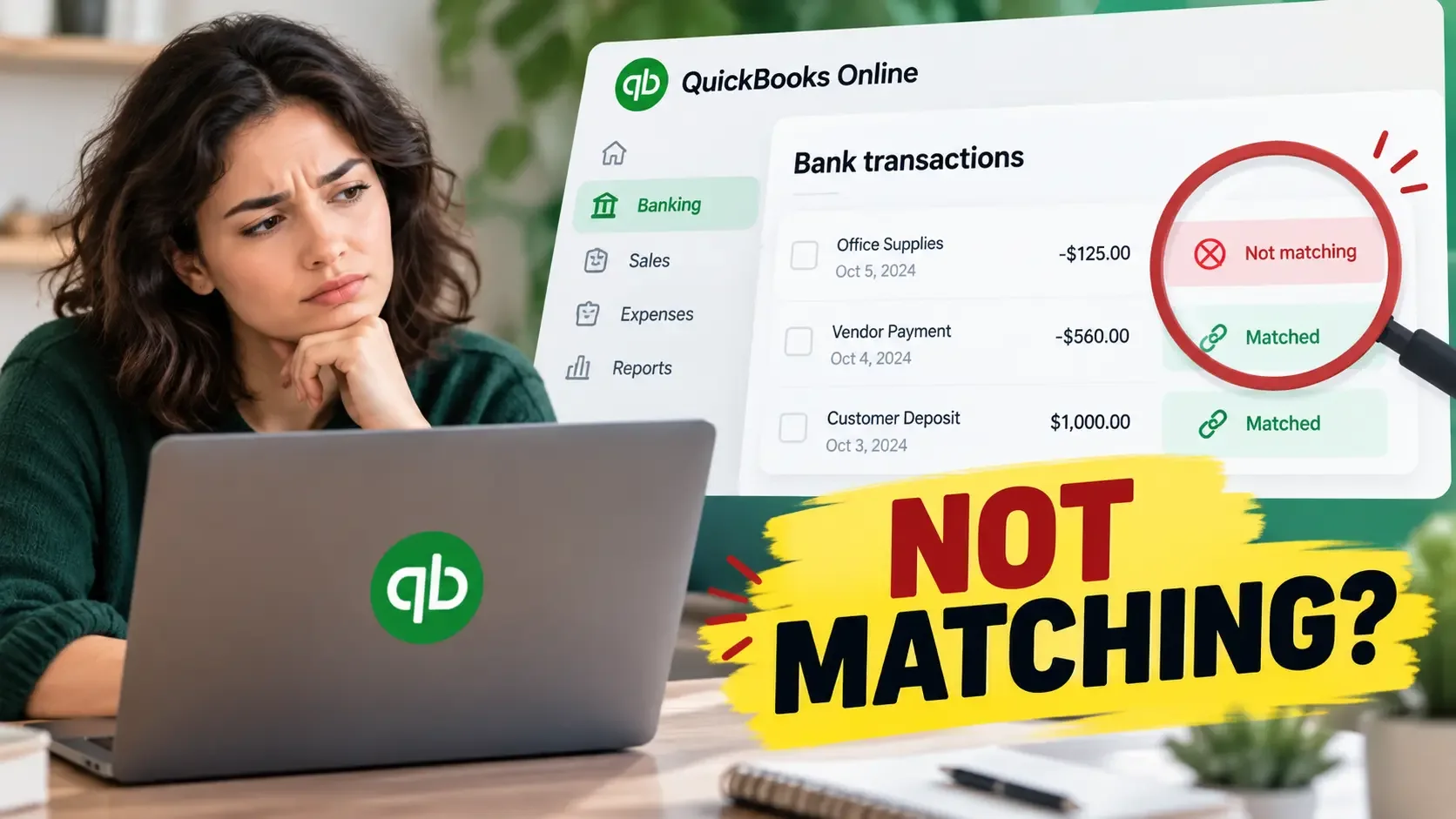
You know the payment or expense is already in QuickBooks Online, yet the downloaded bank transaction is sitting there without the match you expected. That can make it seem as though QuickBooks has lost the original record, even when the transaction is still safely recorded in your books.
The better first move is usually not to enter the transaction again. Differences in the amount, date, account, reconciliation status or the way money reached the bank can prevent QuickBooks from suggesting an otherwise valid existing record.
First, Confirm That This Is Actually a Matching Problem
Start by checking two things: the bank transaction has successfully downloaded into QuickBooks, and the corresponding transaction was already entered in your books. If both are true, you are dealing with the type of matching problem covered here.
If the bank transaction itself never appeared, the issue is with downloading or connecting bank activity instead. If the expense, payment, transfer, receipt or other transaction was never entered before, there may be no existing record for QuickBooks to match.
QuickBooks treats matching and categorizing as different bookkeeping actions. Matching connects downloaded bank activity with something already recorded, while categorizing creates a new record for activity that has not yet been entered.
An Existing Transaction Does Not Have to Appear as a Suggested Match
An existing transaction and a suggested match are not the same thing. QuickBooks can have the transaction in your books without automatically presenting it as the record most likely to match the bank activity.
The banking system compares details such as the amount, timing, account and transaction structure. When those details do not line up closely enough, the suggestion may be missing even though the original record is still available.
That is why the next step is to identify what differs between the downloaded activity and the existing transaction.
Why QuickBooks May Not Be Suggesting the Transaction
The fastest way to diagnose the problem is to compare the bank activity with the transaction you originally entered.
| What looks different | What to investigate |
|---|---|
| Bank amount and QuickBooks amount | Fees, discounts, or deposit structure |
| Transaction dates | Whether the dates are too far apart |
| Bank or card account | Whether the original record used another account |
| One large bank deposit | Whether several payments were combined |
| Existing record is unavailable | Whether it was reconciled or matched previously |
| Foreign-currency amount | Whether exchange-rate movement changed the value |
You do not need every possibility to apply. Find the explanation that best fits the transaction in front of you.
The Bank Amount Is Different From the Amount You Recorded
The transaction can represent the same business activity even when the amount reaching the bank is different. Payment processing fees, discounts and other adjustments can change the final amount in the bank feed.
For example, you may have recorded a $500 customer payment while the bank received $485 after a $15 processing fee. The two entries are related but the amount difference can make the automatic match less obvious.
Do not change the original transaction simply to make the numbers equal. First determine why the difference exists.
Several Payments Were Combined Into One Deposit
Several individual QuickBooks payments can sometimes arrive at the bank as one combined deposit. In that case, there may be no single QuickBooks transaction with the exact amount shown by the bank.
For example, payments of $200, $300 and $500 could appear as one $1,000 bank deposit. Searching only for one $1,000 payment would miss how those payments were originally recorded.
Grouped deposits have their own workflow, so this guide only needs to identify them as a possible reason the expected match is missing.
The Recorded Date and Bank Date Are Too Far Apart
The date entered in QuickBooks and the date a transaction reaches the bank do not always match exactly. A larger gap can affect whether QuickBooks presents the record as a suggested match.
In the current U.S. QuickBooks Online banking experience, the documented suggested-match range runs roughly from 90 days before to 20 days after the downloaded transaction date. A transaction outside that window can still exist without appearing automatically.
Matching behaviour can vary across QuickBooks regions and interface versions, so that range should not be treated as a universal rule worldwide.
The Transaction Was Entered Against Another Bank Account
The amount and date may look correct but the original record could belong to another bank or credit-card account. That can make the transaction unavailable from the feed you are currently reviewing.
Compare the account on the existing QuickBooks record with the account attached to the downloaded activity. If they differ, determine whether the original transaction was entered incorrectly or whether you are viewing the wrong feed.
The Transaction Has Already Been Reconciled
A reconciled transaction is handled differently because it has already been included in a completed reconciliation. In the current U.S. banking workflow, an already reconciled record is not treated as a normal new match suggestion.
If the existing transaction was correctly reconciled and the downloaded item represents the same activity, the bank-feed item may need to be excluded instead of matched again. If the reconciled record itself appears incorrect, handle that as a separate accounting issue.
The Record Has Already Been Matched
The transaction may already be linked to another downloaded item. If so, it may no longer be available as an unmatched record.
If the earlier match was incorrect, correcting or undoing that match is a separate troubleshooting process. Do not try to solve it by adding another transaction.
Currency Conversion Has Changed the Amount
If your QuickBooks company uses multiple currencies, exchange-rate movement can make a valid transaction look very different from the amount shown by the bank.
Compare both the original currency and the converted value before assuming the records do not belong together. If both sides use the same currency, this check does not apply.
How to Find the Existing Transaction Manually
Once you are confident that the transaction already exists, move from the automatic suggestion to a manual search. In the current U.S. QuickBooks Online interface, the banking workflow is available through All apps → Accounting → Bank transactions.
Locate the downloaded transaction and review any match QuickBooks has already suggested. If the suggestion is wrong or the expected record is missing, use Find other match.
| Step | What to do |
|---|---|
| 1 | Open Bank transactions and locate the downloaded activity |
| 2 | Review any transaction QuickBooks has suggested |
| 3 | Use Find other match if the correct record is missing |
| 4 | Locate the transaction you originally entered |
| 5 | Compare its key details with the bank activity |
| 6 | Complete the match only when both represent the same transaction |
QuickBooks changes its banking interface over time, so labels can differ between accounts and regions. The key task is identifying the correct existing record rather than relying on one particular button name.
Check More Than the Amount Before You Match
A matching amount is useful, but it is not enough by itself. Two unrelated transactions can have the same value.
Compare the date, account, customer or vendor and transaction type as well. The overall transaction should make sense before you connect the records.
Bank descriptions can help, but they are not always identical to the names stored in QuickBooks. Banks and payment processors often shorten or alter merchant descriptions.
When Should You Match and When Should You Categorize?
Base the decision on whether the transaction has already been recorded. If it exists in QuickBooks, the normal goal is to locate that record and match the downloaded activity to it.
If no corresponding record exists, categorizing the downloaded activity can create a new one. These actions serve different purposes even though both can remove an item from the bank-review workflow.
The important distinction is simple: a missing suggested match does not mean the transaction itself is missing.
What If Find Other Match Still Doesn't Show the Transaction?
If the manual search still fails, return to the strongest diagnostic clues. Confirm that the original record exists, then review the amount, date, bank account, grouped-deposit possibility, reconciliation status, previous matching status and currency if relevant.
If none of those explains the problem, avoid making a replacement entry only to clear the bank item. Reviewing the specific transaction with QuickBooks support or an accounting professional is safer than making an unsupported accounting change.
Before You Complete the Match
Once you locate a likely record, compare it with the downloaded activity one final time. The amount, date, account, customer or vendor and transaction type should all support the same conclusion.
Take particular care when an invoice or bill is involved because matching a related payment can affect its payment status. Make sure the money was actually received or sent before completing the connection.
A successful match should connect two records of the same business event. It should not simply make an item disappear from the banking screen.