
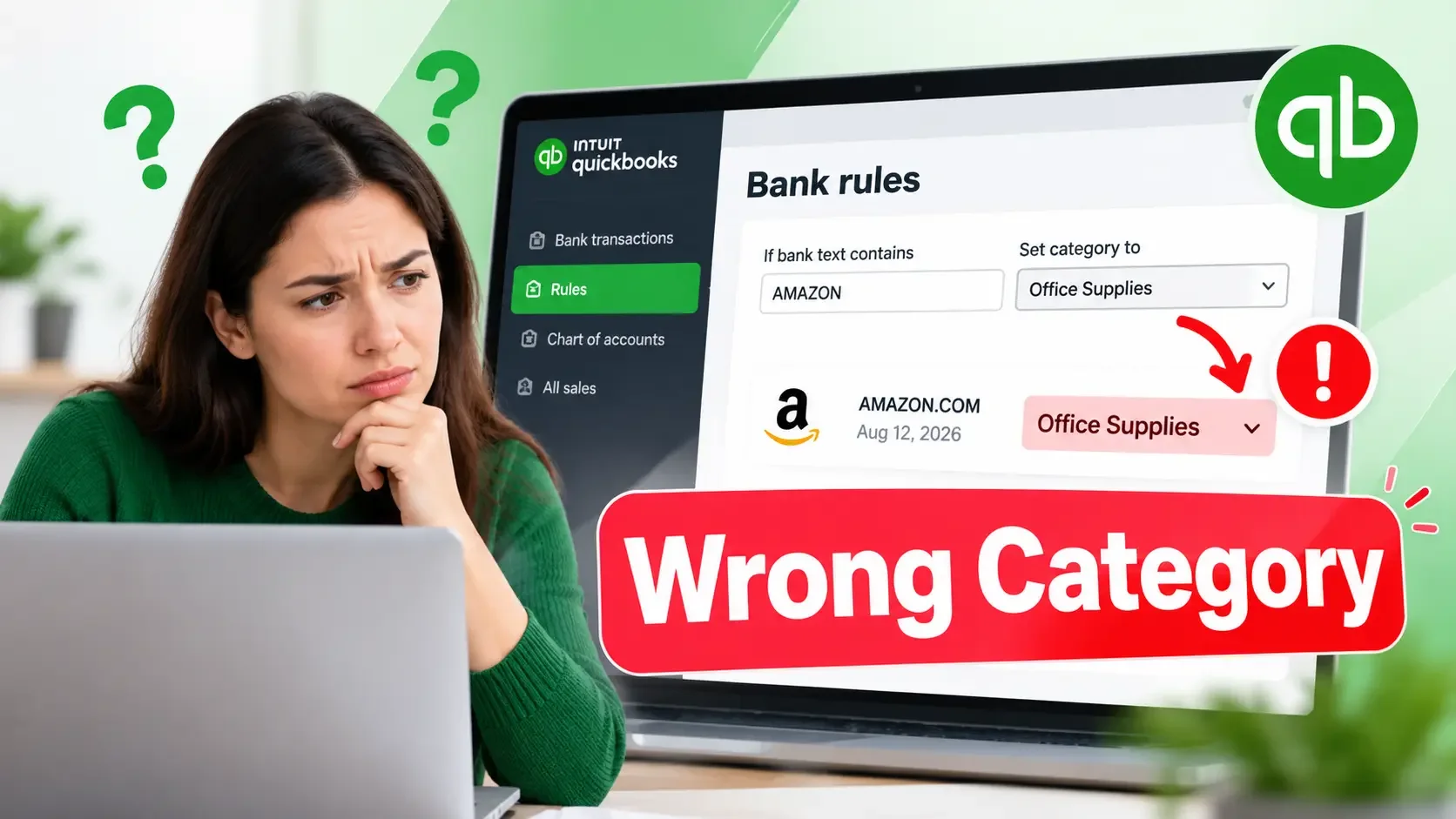
If a QuickBooks Online bank rule keeps assigning transactions to the wrong expense category, the problem usually comes from the rule's settings, matching conditions, or priority. A rule may recognize the correct merchant but select the wrong account or a broader rule may take precedence over the one you intended to use.
To fix it, open All apps → Accounting → Rules and inspect the rule responsible for the transaction. Check its assigned category, conditions and position in the priority list. Before making changes, however, confirm that a bank rule caused the incorrect categorization rather than a suggestion generated by QuickBooks.
Why QuickBooks Bank Rules Assign Wrong Categories
QuickBooks Online uses bank rules to categorize downloaded transactions according to conditions you define. These conditions can examine transaction descriptions, original bank text or amounts, allowing recurring activity to be categorized with less manual work.
Problems occur when those conditions do not accurately distinguish the transactions you want to categorize. For example, a rule intended for office supplies might also recognize unrelated purchases from the same retailer.
Sometimes the matching conditions are correct, but the category selected inside the rule is wrong. Another possibility is that two rules recognize the same transaction, and QuickBooks applies the higher-priority rule instead of the more specific one.
The following table can help you identify where to investigate first.
| What you notice | Possible cause | What to check |
|---|---|---|
| Every matching transaction receives the wrong category | Incorrect category saved in the rule | Rule's Category field |
| A specific rule never seems to apply | Another rule has higher priority | Rule order |
| Unrelated purchases receive the same category | Conditions are too broad | Description, Bank text, and Amount |
| Transactions enter your books without manual approval | Auto-post is enabled | Automatic confirmation setting |
| A category appears without a RULE indicator | QuickBooks suggested the category | Suggested categorization |
| Correcting the rule does not fix older transactions | Transactions were already posted | Posted transactions |
These are possible explanations rather than guaranteed diagnoses. The correct solution depends on what QuickBooks actually did with the affected transaction.
Step 1: Confirm That a Bank Rule Caused the Problem
Before editing your bank rules, identify whether the incorrect category came from an actual rule or a QuickBooks suggestion. Both can make a category appear automatically but they are controlled differently.
Open QuickBooks Online and navigate to All apps → Accounting → Bank transactions. Choose the relevant bank or credit card account and locate an affected transaction.
Look at the category information associated with that transaction. According to Intuit's documentation, QuickBooks displays a RULE badge when a bank rule has been applied and an AUTO badge for applicable automatic posting.
You can also use the All transactions dropdown to filter transactions by Rules, No rules, or Auto-post rules. This makes it easier to identify which transactions are being handled through your configured rules.
If the transaction has a rule indicator, continue with the rule checks below. If the category appears only as a suggestion, investigate suggested categorization instead.
What If QuickBooks Is Suggesting the Wrong Category?
QuickBooks Online can recommend categories using information from downloaded transactions and your previous accounting activity. For example, it may suggest an expense account that you frequently use for a particular vendor, even when the current purchase belongs somewhere else.
If the transaction is still awaiting review, open it and replace the suggested category with the appropriate account. Check the underlying transaction details before posting so the correction reflects what the business actually purchased.
If you prefer to review categories manually, Intuit documents an option to disable automatic category suggestions. Go to Accounting → Bank transactions, open the section's Settings gear and uncheck Enable suggested categorization.
This setting controls category suggestions; it is not a substitute for correcting an improperly configured bank rule. If transactions continue receiving incorrect classifications through a rule, investigate that rule separately.
Step 2: Check the Category Assigned Inside the Bank Rule
Once you have confirmed that a rule is involved, check the category saved in its configuration. This is especially useful when the same type of transaction repeatedly receives an incorrect expense account.
Go to All apps → Accounting → Rules and find the relevant rule. Select its editing option and inspect the transaction type, category and other details the rule assigns.
Imagine a business paying $49 each month for an online project management subscription. The bank rule correctly identifies the payment but categorizes it under Office Supplies because that account was selected when the rule was created.
The rule may be recognizing every payment correctly while consistently assigning the wrong category. In this situation, changing its matching conditions would not address the actual problem.
Instead, select the appropriate account from the rule's category settings and save the change. The correct account depends on the business's chart of accounts and the nature of the transaction, so do not assume that every subscription belongs in the same category.
Also review the assigned payee and any split-category settings. QuickBooks Online supports rules that distribute a transaction across multiple categories, making it important to check more than the primary category when a rule produces unexpected results.
Step 3: Check Whether the Rule's Matching Conditions Are Too Broad
A bank rule can work exactly as configured and still produce incorrect accounting results. This happens when its conditions recognize transactions that should not be classified together.
For example, suppose a business creates a rule that searches for the word "AMAZON" and categorizes every matching payment as Office Supplies. The business may purchase stationery from Amazon but it might also buy equipment, cleaning products or goods intended for resale.
Because the rule recognizes the merchant name rather than the purpose of each purchase, unrelated transactions can receive the same category.
To investigate, open the rule and examine the conditions used to identify downloaded transactions. QuickBooks Online supports conditions based on Description, Bank text and Amount, including text comparisons such as Contains, Doesn't contain and Is exactly.
Compare those conditions with the actual information shown on transactions that were categorized incorrectly. Determine whether the rule is recognizing something too general, such as a merchant name shared by several types of purchases.
How to Make a Rule More Specific
Look for consistent information that separates the intended transactions from unrelated activity. Depending on the bank data available, you may be able to replace a broad description with a more specific one or combine suitable conditions.
For example, a regularly billed service might have a recognizable description and a consistent amount. Those details could help distinguish the payment from unrelated transactions, although an amount alone should not be treated as proof of the expense's purpose.
Also inspect whether the rule applies to Money in or Money out and whether it covers a specific bank account or all bank accounts. An unnecessarily broad account selection can allow the rule to apply in places you did not intend.
If the available bank information cannot reliably distinguish different types of expenses, consider keeping those transactions under manual review. A rule should not automatically classify purchases when the transaction details do not establish the appropriate accounting treatment.
Step 4: Check Bank Rule Priority
QuickBooks Online can apply only one bank rule to an individual transaction. When multiple rules could recognize the same transaction, their priority order determines which rule takes precedence.
This explains why a carefully configured rule can appear to be ignored. Another rule positioned above it may already have matched the transaction.
Example: Two Rules Competing for the Same Transaction
Suppose a business uses one rule for general travel expenses and another specifically for parking payments. Both rules examine the bank transaction description, but their conditions overlap.
| Rule | Matching condition | Assigned category |
|---|---|---|
| General city expenses | Description contains "CITY" | Travel Expenses |
| City parking payments | Description contains "CITY PARKING" | Parking Fees |
Now imagine a downloaded transaction with the description "CITY PARKING." Both rules could recognize the text but the general rule is currently positioned above the parking rule.
Because QuickBooks applies the higher-priority matching rule, the transaction may be categorized under Travel Expenses rather than the intended Parking Fees account.
The solution is to move the specific parking rule above the general city expenses rule, provided both rules' conditions accurately reflect their intended purposes. This allows QuickBooks to evaluate the more specific condition first.
The example is illustrative and the account names are not required QuickBooks categories. They simply demonstrate how overlapping conditions and rule priority can affect categorization.
How to Change Rule Priority in QuickBooks Online
Navigate to All apps → Accounting → Rules and locate the two rules. Compare their matching conditions to confirm that both could apply to the same transaction.
Use the reorder control to drag the more specific rule above the broader one. QuickBooks gives higher priority to rules positioned earlier in the list.
After changing the order, consider whether the moved rule could interfere with any other existing rules. Increasing a rule's priority can affect future transactions beyond the one you originally investigated.
Step 5: Check Bank Text Versus Description
Another possible cause is using the wrong transaction field in the rule's matching conditions. QuickBooks Online distinguishes between the original information received from your bank and the simplified description displayed in its banking interface.
Bank text contains the transaction information provided by your financial institution. It may include merchant identifiers, abbreviations or payment-processing details that are not immediately recognizable.
Description is a simplified representation of that information. QuickBooks may shorten a longer bank entry into a more recognizable vendor name.
For example, a bank might supply transaction text containing a merchant name, transaction identifier and processing information. QuickBooks may display a shorter description containing only the merchant name.
A condition examining Bank text will not necessarily produce the same result as one examining Description. If your rule was created using information from the wrong field, it may recognize unexpected transactions or fail to recognize the intended ones.
To check, go to Accounting → Bank transactions and open the Settings gear within that section. Select Show full bank description to inspect the original bank information.
Compare the actual bank text with the field selected in your rule. If the rule is checking the wrong information, edit the condition to use the appropriate field and save your changes.
Step 6: Test the Corrected Bank Rule
After changing a rule's conditions, category or other settings, verify that it identifies the intended transactions. Testing is particularly important when you have narrowed a broad condition or introduced additional requirements.
QuickBooks Online includes a Test Rule feature that can evaluate a rule against transactions awaiting review. Open the rule editor and use Test Rule to check whether its current conditions recognize relevant unreviewed transactions.
If the test identifies transactions that should not qualify, inspect which part of the conditions allowed those matches. You may need to make the rule more specific before relying on it.
If an expected transaction is missing, compare its actual description, bank text and amount with the rule's requirements. Even a small difference in the available transaction information can explain why a condition does not match.
Remember that Test Rule checks matching conditions against available unreviewed transactions. It does not independently guarantee that the assigned category is appropriate or that no higher-priority rule will take precedence.
After testing, review the configured category and priority before saving the corrected rule. Check the result on an eligible transaction to confirm that the overall behaviour matches your expectations.
Step 7: Turn Off Auto-Post While Investigating Incorrect Categories
A wrongly configured bank rule becomes more concerning when automatic posting is enabled. Instead of waiting for manual approval, an auto-post rule can add matching transactions directly to the company's accounting records.
For example, a rule intended for a recurring expense could automatically post unrelated payments if its matching conditions are too broad. This can create a series of miscategorized transactions before someone notices the problem.
Open the affected bank rule and look for the auto-post setting under Automatically confirm transactions this rule applies to. If you are still investigating the rule, turn off automatic confirmation and save the change.
Alternatively, QuickBooks provides a Disable option in the rule's Actions menu. Temporarily disabling a questionable rule can be useful when you want to stop it from applying while you determine the correct configuration.
Be aware that Intuit says auto-post rules can run when you sign in, upload transactions or create or modify an auto-post rule. Check the rule carefully before turning automatic posting back on.
For transactions whose correct category depends on their individual purpose, manual review is often safer than automatic posting.
Step 8: Correct Transactions Already Assigned the Wrong Category
Changing a bank rule does not replace the need to check transactions that were previously categorized incorrectly. The appropriate correction depends on whether the transaction is still pending, has already been posted or has been reconciled.
If the Transaction Is Still Pending
Go to All apps → Accounting → Bank transactions and select the appropriate bank account. Open the Pending tab and locate the transaction with the incorrect category.
Review the payment details and select the appropriate category before posting it. If the transaction belongs to an existing bill, expense or other record, investigate matching instead of automatically creating a new entry.
Categorizing a payment that should have been matched can create duplicate accounting records. If QuickBooks is failing to recognize a transaction that already exists, see BusinessTally's guide: QuickBooks Transaction Not Matching? Find the Existing Record.
If the Transaction Has Already Been Posted
For a previously posted transaction, Intuit documents a way to correct the accounting account associated with eligible categorized entries.
Open All apps → Accounting → Bank transactions and select the bank or credit card account containing the affected payment. Switch to the Posted tab and find the transaction you need to correct.
Select the blue transaction link in the Added or Matched column to open the underlying record. For a transaction that supports this change, use the Account dropdown to select the correct account for each applicable line item.
Do not change the Payment account simply because the expense category is incorrect. The payment account identifies where the money came from, while the expense account describes how the transaction is classified in the books.
After selecting the correct account, choose Save and close. Review the saved transaction to confirm that its accounting classification now reflects the actual purchase.
Not every transaction type supports the same editing procedure. Intuit specifically notes differences involving deposits and sales receipts, so check the available fields rather than assuming every posted transaction can be changed identically.
When Should You Use Undo Instead?
If a downloaded transaction was incorrectly added and you need to review it again from the banking feed, QuickBooks provides an Undo option for eligible posted transactions.
Open the affected bank account's Posted tab, locate the transaction and select Undo from the Action column. QuickBooks returns the downloaded transaction to Pending so you can review and categorize it again.
Undo is also used in Intuit's documented procedure for disconnecting an incorrect match. However, correcting an existing expense account and reversing an incorrect transaction match are different tasks, so choose the action that addresses the actual problem.
Before using Undo, check whether the transaction has already been reconciled or is connected to other accounting activity.
If the Transaction Has Already Been Reconciled
Reconciled transactions need additional care because they have already been included in a completed reconciliation. Changing the wrong field or undoing an entry can affect previously verified records.
Intuit advises consulting an accountant before changing or unmatching a reconciled transaction. The appropriate correction depends on the original entry and how the transaction affects the company's financial records.
Avoid undoing an entire reconciliation simply because a category appears incorrect. Identify the accounting issue first and determine the appropriate correction with your accountant.
What If QuickBooks Still Assigns the Wrong Category?
If the incorrect category continues appearing after you edit a rule, examine a newly affected transaction rather than immediately making more changes. Confirm whether the expected rule is being applied and whether the transaction is still pending or has already been posted.
A rule may have the correct assigned category but still lose priority to another rule. Alternatively, its conditions may be checking Bank text when the identifying information appears in Description.
If the transaction has no RULE indicator, investigate suggested categorization instead. QuickBooks can recommend categories using transaction history and other available information independently of manually configured bank rules.
When the behaviour remains unexplained, record the affected transaction's description, expected category, actual category and relevant rule conditions. These details can help QuickBooks support investigate the issue without requiring you to share unnecessary financial information.
How to Prevent Wrong Bank Rule Categories in the Future
Reliable bank rules depend on transaction information that consistently identifies the correct accounting treatment. Before creating or modifying a rule, consider whether its conditions actually distinguish the intended transactions from unrelated purchases.
Rules for predictable recurring expenses are generally easier to evaluate than rules covering merchants that sell many different products. When one merchant supplies several types of purchases, avoid assuming that every payment belongs in the same accounting category.
Keep specific rules above broader overlapping rules and review new rules for conflicts with existing conditions. Use Test Rule where available, then inspect the assigned category and other settings before allowing the rule to handle transactions automatically.
For rules using auto-post, periodically examine the posted transactions to confirm that expenses are being classified appropriately. A rule that appears to save time can create additional bookkeeping work if incorrect transactions accumulate without review.
The aim is not to automate as many transactions as possible. It is to automate the transactions that can be identified accurately while leaving uncertain ones for manual review.
Keep QuickBooks Bank Rule Categories Accurate
When a QuickBooks bank rule assigns the wrong category, the most useful approach is to identify the responsible rule before changing its settings. Check the category it assigns, the conditions it uses and whether another rule has higher priority.
Once you understand the cause, make the appropriate correction and test the result. If automatic posting was enabled, review previously posted transactions as well so an earlier mistake does not remain unnoticed in the accounting records.
A properly configured bank rule should reduce repetitive bookkeeping without introducing uncertainty about where transactions belong. When a payment cannot be categorized reliably from the available bank information, reviewing it manually is a better outcome than automatically placing it in the wrong account.