
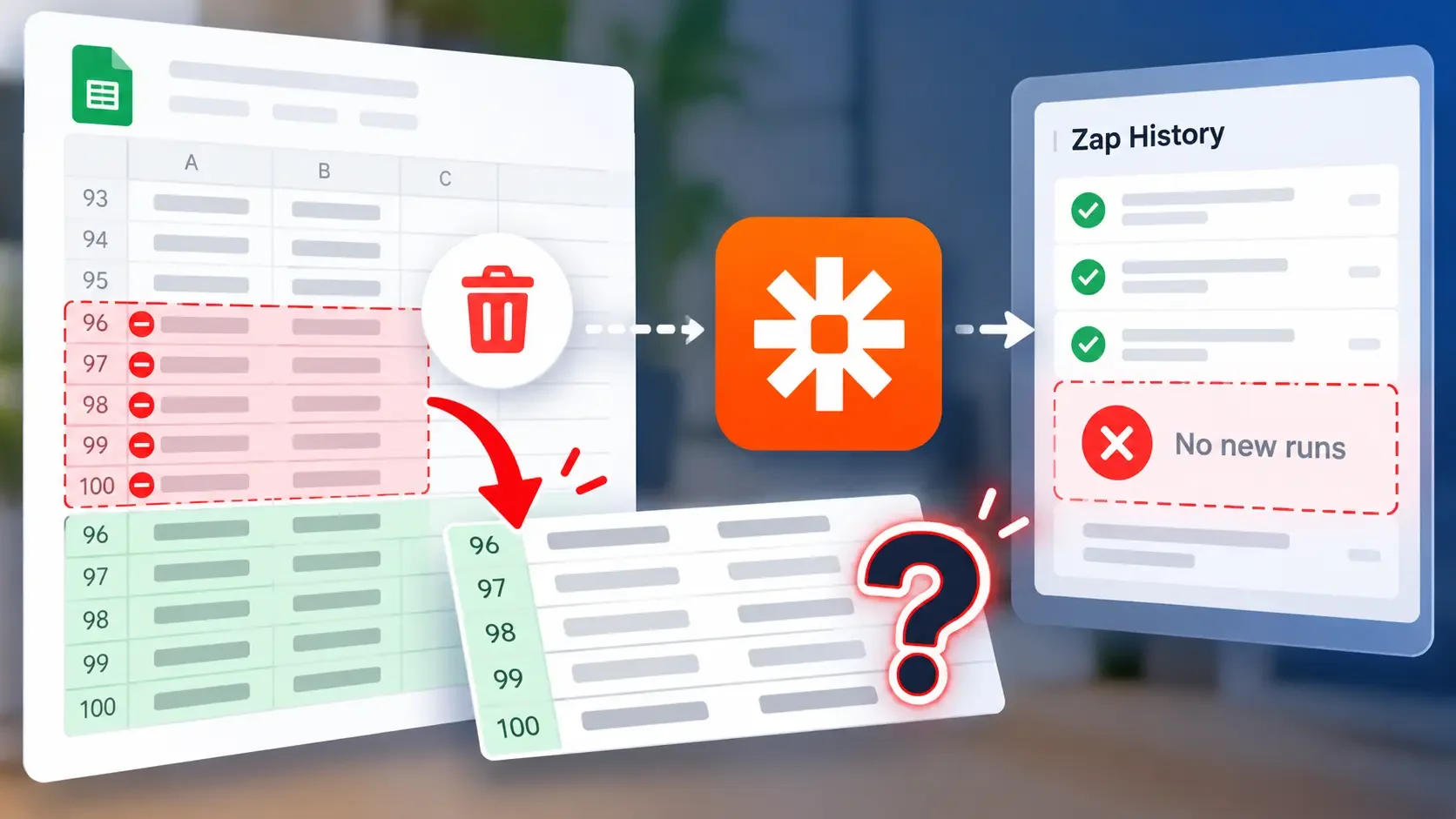
You removed several completed orders from a Google Sheets spreadsheet, added new customer records and expected Zapier to process them as usual. The Zap is still turned on, the new orders are visible in the worksheet and the connected application appears to be working. Yet those orders never arrive and Zap History contains no corresponding runs.
The problem may be related to the rows you deleted. Zapier uses spreadsheet row numbers to recognize records it has already processed and removing existing rows can cause newly entered information to occupy previously recognized positions. Those records may then be ignored even though their contents are entirely new.
This is a documented limitation of Zapier's Google Sheets integration. Understanding how it happens is important because testing the connection, restarting the Zap and recovering missing orders are different tasks. One does not necessarily accomplish the others.
Why Zapier Skips New Rows
Consider a wholesale business that records incoming customer orders in Google Sheets. Each row contains an order number, customer name, delivery address and order total. A Zap using the New Spreadsheet Row trigger sends each new order to the company's order-management application.
By Monday morning, the automation has successfully processed every order through spreadsheet row 100. The office administrator then removes five completed orders because they are no longer needed in the active worksheet.
Google Sheets automatically shifts the remaining records upward. The last populated row, previously row 100, is now row 95.
Later that afternoon, five new orders arrive. The administrator enters them at the bottom of the worksheet, where they occupy rows 96 through 100.
Nothing looks unusual in Google Sheets. The new orders have valid order numbers, complete customer information and the same column structure as previously processed records.
However, Zapier has already encountered those spreadsheet row numbers.
Zapier's Google Sheets integration uses row numbers as part of its deduplication mechanism. The system tracks previously processed positions so that the same row does not repeatedly start an automation.
When the administrator deleted five existing rows, the spreadsheet's remaining records moved upward but Zapier's previous tracking history did not necessarily change to reflect their new positions.
Consequently, the newly entered orders in rows 96 through 100 may not trigger the Zap.
Why New Order IDs Don't Help
The administrator might assume that assigning a new order number should make the record recognizable.
For example, order ORD-2041 may now occupy row 96, even though that position previously contained an entirely different transaction. To an employee, ORD-2041 is clearly a new business record that has never been processed.
However, Zapier's documented row-number deduplication can treat row 96 as a position it has already encountered.
This explains why editing the customer's name, changing the order amount or entering a different order identifier may not cause the New Spreadsheet Row trigger to recognize the record.
The problem concerns the row's position in the worksheet, not whether its business information is unique.
Zapier's documentation describes a similar example involving five deleted rows. After processing row 100, deleting five existing rows can prevent the next five newly populated rows from generating new trigger events.
The integration may begin recognizing records again when they reach a row number beyond the previously processed range. However, that behaviour should not be treated as a guaranteed repair and it does nothing to recover orders that were already missed.
Check for Missed Triggers
Before changing the spreadsheet again, establish whether the missing orders actually failed to trigger Zapier.
Suppose the wholesale business discovers that orders ORD-2041 through ORD-2045 are absent from its order-management application. The administrator should open Zap History and locate the relevant workflow's activity around the time those orders were entered.
Zapier allows users to find workflows and filter run history by details such as date, Zap name, applications and run status. The administrator can narrow the results to the relevant period, then open individual runs to inspect the information received by each step.
If the missing orders produced no corresponding runs, the trigger may not have recognized them.
That finding becomes particularly significant when the last successful run occurred before the administrator deleted the five older rows.
However, a missing run does not independently prove that row-number deduplication is responsible. The Zap might be inactive, connected to the wrong worksheet or affected by another integration problem.
If a run does exist, the administrator should examine its status before changing the trigger.
A filtered run means Zapier received the spreadsheet event but a later condition prevented the workflow from continuing. An errored action means the automation started but encountered a problem while processing the record.
Neither situation is the same as a new row being ignored before a Zap run begins.
Allow for Trigger Delays
Zapier's Google Sheets triggers are not always immediate. Although the integration may display an instant-trigger label, Zapier explains that Google Sheets uses a combination of polling and instant-trigger methods.
The overall process can take approximately three minutes.
If an employee added ORD-2041 only a few seconds ago, its absence from Zap History does not necessarily indicate a problem.
Wait for the normal processing interval and check the relevant workflow's history again. If the order still has no corresponding run and the missing events began immediately after rows were deleted, the row-number issue becomes a stronger possibility.
What You Can Actually Fix
These instructions can help repair configuration problems introduced during spreadsheet maintenance.
They do not guarantee that Zapier will forget previously processed row numbers or automatically recognize records it already skipped.
For the wholesale business, the immediate priority is to preserve the missing orders while checking whether the existing Zap can reliably process future records.
Preserve the Missing Records
The administrator should first make a copy of the current worksheet and identify the orders that did not reach the destination application.
Using the business's actual order numbers is important because spreadsheet row positions may already have changed. ORD-2041 remains a useful identifier even if its row number is different from when it was originally entered.
Avoid deleting additional rows or moving existing records around to force Zapier into recognizing them.
Repeated structural changes can make the failure more difficult to investigate and may create additional problems for other Zaps connected to the same worksheet.
Check the Sheet and Trigger
Before making further structural changes, turn off the affected Zaps.
Open the worksheet and confirm that its column headers still appear in the first row. Check that no additional header rows or unexpected blank rows have been introduced between existing records.
Also establish whether the administrator made other changes during cleanup. For example, sorting the worksheet, renaming columns or changing the worksheet name can interfere with Zapier's connection to the expected spreadsheet structure.
These are separate documented causes of Google Sheets trigger problems.
If the worksheet remains correctly structured, there is no reason to reorganize it merely because its new rows were missed.
Next, open the affected Zap in the editor and review the Google Sheets trigger.
Confirm that it uses the correct Google account, spreadsheet and worksheet. The trigger event should remain New Spreadsheet Row if the business wants the automation to process newly added orders.
Use the editor's testing feature to retrieve a sample record and check whether it contains the expected order information.
If the spreadsheet's columns were changed, examine the mappings in subsequent Zap steps. The order-management application's Customer Name field, for example, should still receive the customer's name rather than a different spreadsheet value.
Correct any genuine configuration problems, retest the affected steps and publish the Zap again.
Test Whether Future Orders Are Being Detected
Once the configuration has been reviewed, the administrator needs to verify the published workflow rather than relying exclusively on the editor's test results.
A successful sample-data test means Zapier can retrieve information from the configured worksheet. It does not establish that the live trigger's previous row-number tracking problem has been resolved.
Choose a controlled test that will not create unwanted customer notifications, duplicate financial records or other consequential actions.
Add a complete test record at the bottom of the populated worksheet and record the time. Use a recognizable test identifier so that the data can be distinguished from genuine customer orders.
After allowing the normal Google Sheets processing interval, check Zap History for a corresponding run. If one appears, inspect the trigger data and confirm that the subsequent actions produced the expected result.
If no run appears, do not repeatedly delete and recreate the test record.
The earlier row-number history may still be preventing detection or the workflow may have another unresolved trigger problem.
Zapier's general trigger guidance describes turning a Zap off briefly and back on as a way to reset its trigger connection. However, resetting a connection is not documented as a guaranteed way to clear Google Sheets row-number deduplication history.
If the workflow continues missing new records after its configuration has been checked, contact Zapier Support rather than assuming another restart will solve the problem.
The administrator should explain that the Zap previously processed row 100, five existing rows were deleted and subsequently entered orders in rows 96 through 100 failed to produce runs.
That information gives support a specific technical pattern to investigate.
Recover the Missed Orders
Even if the workflow starts processing future orders normally, the five earlier transactions may remain missing.
This is where the distinction between a failed action and an undetected trigger becomes important.
Zapier supports replaying certain existing Zap runs. For example, if a spreadsheet trigger started successfully but a later action failed while creating an order, that run may be eligible for replay after the underlying error is corrected.
However, if ORD-2041 never triggered the workflow, there is no corresponding run in Zap History to replay.
The administrator therefore needs a separate method of processing the missing order.
Identify Missing Transactions
The first step is to compare the spreadsheet's order numbers with the records already present in the order-management application.
Suppose ORD-2041, ORD-2042 and ORD-2044 are missing, but ORD-2043 and ORD-2045 were successfully processed through another route.
Sending all five orders through the automation again could create duplicate transactions.
Instead, the administrator should prepare a recovery list containing only the three orders that still require processing.
For a small number of records, entering them manually into the destination application may be the simplest approach.
Each recovered order should be checked against its original spreadsheet information and the administrator should confirm that the destination contains the transaction before considering it complete.
Recover Larger Records in Bulk
When many spreadsheet records were missed, manually recreating each transaction may become impractical.
Zapier documents a Transfer Data feature that can process existing records from Zapier Tables through a published workflow.
The business can import the necessary spreadsheet information into a table, select the records that need processing, map their fields and confirm the transfer.
This is a separate data-transfer operation, not an automatic replay of the original Google Sheets trigger.
Zapier documents that each transferred record creates a Zap run and consumes a task. The administrator should therefore check the workflow's compatibility, account limits and expected business actions before attempting a larger recovery.
For example, an automation designed to create order records may be suitable for processing historical orders. An automation that immediately emails customers or triggers payment-related actions requires additional care.
The recovery process should accomplish the missing business operation without accidentally repeating other actions.
Prevent the Future Trigger Failures
The most useful long-term change for the wholesale business is to stop deleting completed orders from the worksheet used by the New Spreadsheet Row trigger during normal operations.
Employees still need a convenient way to separate current orders from historical transactions but that does not require physically removing processed rows.
If the worksheet already includes an Order Status column, employees can mark completed transactions accordingly and use a filtered view to concentrate on active orders.
For example, the administrator could display only orders marked New or Processing while keeping completed transactions in the underlying worksheet.
This preserves row positions without requiring employees to scroll through every historical order.
If the business needs to introduce a new Status column, it should treat that as a structural change. The affected Zaps should be turned off before the column is added and their mappings should be checked before publication.
A filtered view should also be distinguished from sorting or rearranging the underlying worksheet. Zapier specifically warns that changing row order can interfere with its ability to identify records.
For businesses that regularly need to delete, insert or reorganize records, the limitations of Google Sheets may make it worth evaluating a different source for the automation.
Zapier's documentation identifies Zapier Tables as an alternative that supports adding and deleting records without the same Google Sheets row-number restrictions.
That does not mean every existing workflow should be migrated. The decision depends on how frequently the business changes its records and whether its current spreadsheet arrangement can remain stable.
Why Changing Triggers Won't Help
One possible response is to replace the New Spreadsheet Row trigger with Updated Spreadsheet Row. However, the two events serve different purposes. New Spreadsheet Row is designed to recognize newly added records, while Updated Spreadsheet Row monitors changes to existing records.
The wholesale business wants each new order to enter its order-management application once. Changing the trigger without redesigning the workflow could make the automation respond to edits that were never intended to create new orders.
Updated Spreadsheet Row triggers also have their own detection limitations, particularly when a monitored cell returns to a previously processed value. If your automation stops responding when spreadsheet values repeat, our guide to Zapier Google Sheets rows not triggering when values repeat explains why those updates may be missed and how to investigate them. That is a different problem from new records being skipped because older rows were deleted.
If New Rows Still Don't Trigger
A Zap that continues missing records after the worksheet and trigger settings have been checked may require investigation by Zapier Support.
The most valuable information is not simply that the automation stopped working. It is the sequence of spreadsheet changes and the resulting trigger behaviour.
The administrator should provide the last successful run, the approximate time of the deletion, the number of rows removed and the row positions occupied by the missing orders.
If available, include the results of a controlled test performed after the workflow configuration was reviewed.
This evidence can help distinguish the documented row-number issue from a separate problem involving the connection or worksheet configuration.
While the trigger problem is being investigated, important customer orders should be checked against the destination application and handled through an appropriate recovery procedure.