
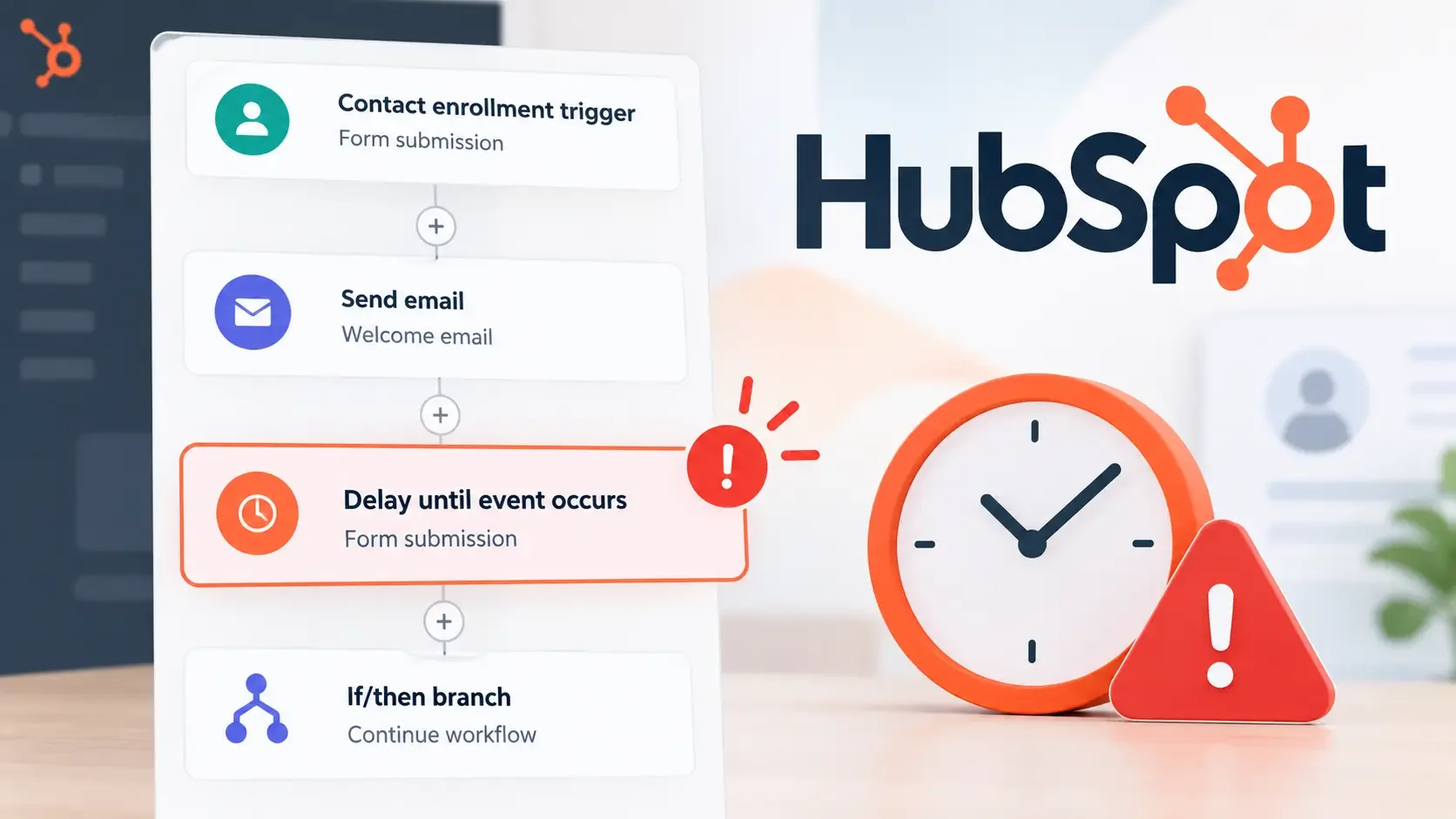
Why Contacts Get Stuck in “Delay Until Event”
1. Confirm the record actually reached the delay. Open the workflow history for the affected contact and verify that the record is genuinely waiting inside the “Delay until event occurs” action. If the contact stopped at an earlier action, branch, enrollment condition or unenrollment rule, changing the delay will not fix the actual problem.
2. Audit the timestamp of the qualifying event. Compare the contact's activity timeline with its workflow history. The important question is whether the event happened before or after the record entered the delay. For example, if a form submission occurred at 10:00 AM but the contact entered the delay at 10:01 AM, that submission happened too early to release the record.
3. Identify pre-delay event execution. An event-based delay is not retroactive. If the relevant form submission, page visit, property-related event, or other configured activity occurred before the record reached the delay, HubSpot does not treat that earlier occurrence as satisfying the waiting condition. The workflow continues waiting for a qualifying occurrence while the record is inside the delay.
4. Inspect the maximum wait settings. Review how long the workflow is configured to wait for the event. If the event never occurs while the contact is waiting, the record can remain inside the delay until the configured waiting period expires. Where appropriate, HubSpot can also route records differently depending on whether the event happens before that period ends.
5. Trigger a controlled test event during the active wait. Use a dedicated test contact, confirm that it is visibly waiting inside the delay and then perform the exact qualifying action. If the contact advances after the event occurs during the waiting period, the event configuration is likely working correctly and the original problem was sequencing.
6. Evaluate whether an If/Then Branch is more appropriate. Ask whether the workflow needs to wait for something that will happen next or determine whether something already happened. If the automation needs to wait for future behaviour, an event delay can be appropriate. If it needs to evaluate historical or existing information immediately, an If/Then Branch or another criteria-based check may be the better design.
Historical Check vs. Future Event
The correct workflow action depends on the business question. “Delay until event occurs” is intended for future qualifying behaviour, while branches and other delay types solve different timing problems.
| Workflow Business Goal | Incorrect Action (Causes Hung Records) | Correct Action / Architecture | Why the Incorrect Setup Fails |
|---|---|---|---|
| Hold a contact until they submit a specific form after receiving an email | Delay until event occurs when the form was already submitted earlier | Position the event delay so the expected submission happens after the contact enters it | The event delay does not retroactively count the earlier form submission |
| Check whether a contact already completed a key action before sending a follow-up | Delay until event occurs for an event that already happened | Use an If/Then Branch with appropriate existing or historical criteria | The delay waits for a future qualifying event instead of evaluating what has already happened |
| Pause a record until a specific appointment date stored in a property | Delay until event occurs | Use a date or datetime property delay | A stored date is a scheduling value rather than a new event occurrence |
HubSpot provides separate workflow delays for event occurrences, fixed periods of time, calendar dates, date or datetime properties, days of the week and times of day. These options should not be treated as interchangeable. The workflow should use the action that matches what it actually needs to wait for.
Real-World Troubleshooting Scenario
A common version of this problem happens when the same event that causes workflow enrollment is also used later as the event the workflow waits for.
The Scenario: A contact submits a form and that submission immediately triggers workflow enrollment. The workflow performs an internal action first and then sends the contact into a “Delay until event occurs” step configured to wait for that same form submission. Because the submission happened before the contact reached the delay, the contact remains waiting for another qualifying occurrence.
The timing can be extremely close. The form might be submitted at 10:00:00 AM and the contact could reach the event delay only two seconds later at 10:00:02 AM. From a human perspective, those actions appear almost simultaneous. From the workflow's perspective, however, the event still occurred before the delay became active.
The root cause is therefore not that HubSpot missed a valid event. The workflow is asking for a future event after the qualifying action has already occurred.
The correct fix depends on the intended logic. If the workflow needs to determine whether the contact already performed the action, replace the event delay with an appropriate If/Then Branch or criteria-based check. If the workflow genuinely needs to wait for a new event, restructure the sequence so the record enters the event delay before that future activity is expected.
Adding a short buffer before the same event delay does not fix this specific problem. A five-minute buffer would move the contact even farther away from the event that already occurred and would not make that earlier activity retroactively qualify.
Step-by-Step Fix & Verification Protocol
Re-architect the flow when you need a historical check. If the workflow's real question is whether the contact has already completed an action, replace the “Delay until event occurs” step with an appropriate If/Then Branch or criteria-based evaluation. This prevents the automation from waiting for an event that may never happen again.
Adjust the sequence for genuinely future events. If the workflow should wait for something that happens after another action, make sure the record reaches the event delay before that expected behaviour occurs. The sequence should reflect the actual order in which HubSpot needs to observe the event.
Configure a reasonable maximum waiting period. Decide how long the workflow should wait if the event never occurs. Where appropriate, use different paths for contacts who satisfy the event criteria and those who reach the end of the waiting period without doing so.
Run a controlled test using one dedicated contact. Enroll the test contact and first verify that it reaches the delay and appears in the waiting state. Once the record is actively waiting, perform the qualifying event manually, such as submitting the relevant form or completing the configured activity. Then review the workflow history to confirm that HubSpot recognized the event and advanced the record to the next step.
This controlled test is especially useful because it separates an event-definition problem from a timing problem. If the same qualifying action releases the test contact when it happens during the delay, the earlier stuck records were likely affected by sequence timing rather than a broken delay action.
Related Execution Issues
If the contact never reaches this point, check the earlier failure state instead. A contact that completed the workflow previously but cannot enter again should be diagnosed using HubSpot Workflow Not Re-Enrolling Contacts? Enable Re-Enrollment. If a qualifying contact never enters the workflow at all, check HubSpot Contact Not Enrolling? Check the Suppression List. If older contacts already satisfied the criteria but were missed when the workflow was activated, see HubSpot Workflow Skipping Existing Contacts? Check This Setting.
Post-enrollment failures also need to be separated by symptom. If the contact progresses through the workflow but an automated marketing email does not send, use HubSpot Workflow Email Not Sending? Check Marketing Contact Status. If the contact successfully enters and then unexpectedly disappears from the workflow, investigate HubSpot Contact Suddenly Unenrolled? Check Workflow Connections instead.
Keeping these failure states separate prevents unnecessary changes to enrollment settings when the real issue is occurring later in execution. Future guides in this post-enrollment subcluster can address other narrow execution failures, including skipped actions, unexpected workflow exits and record-change behavior without expanding this article beyond its event-timing intent.