
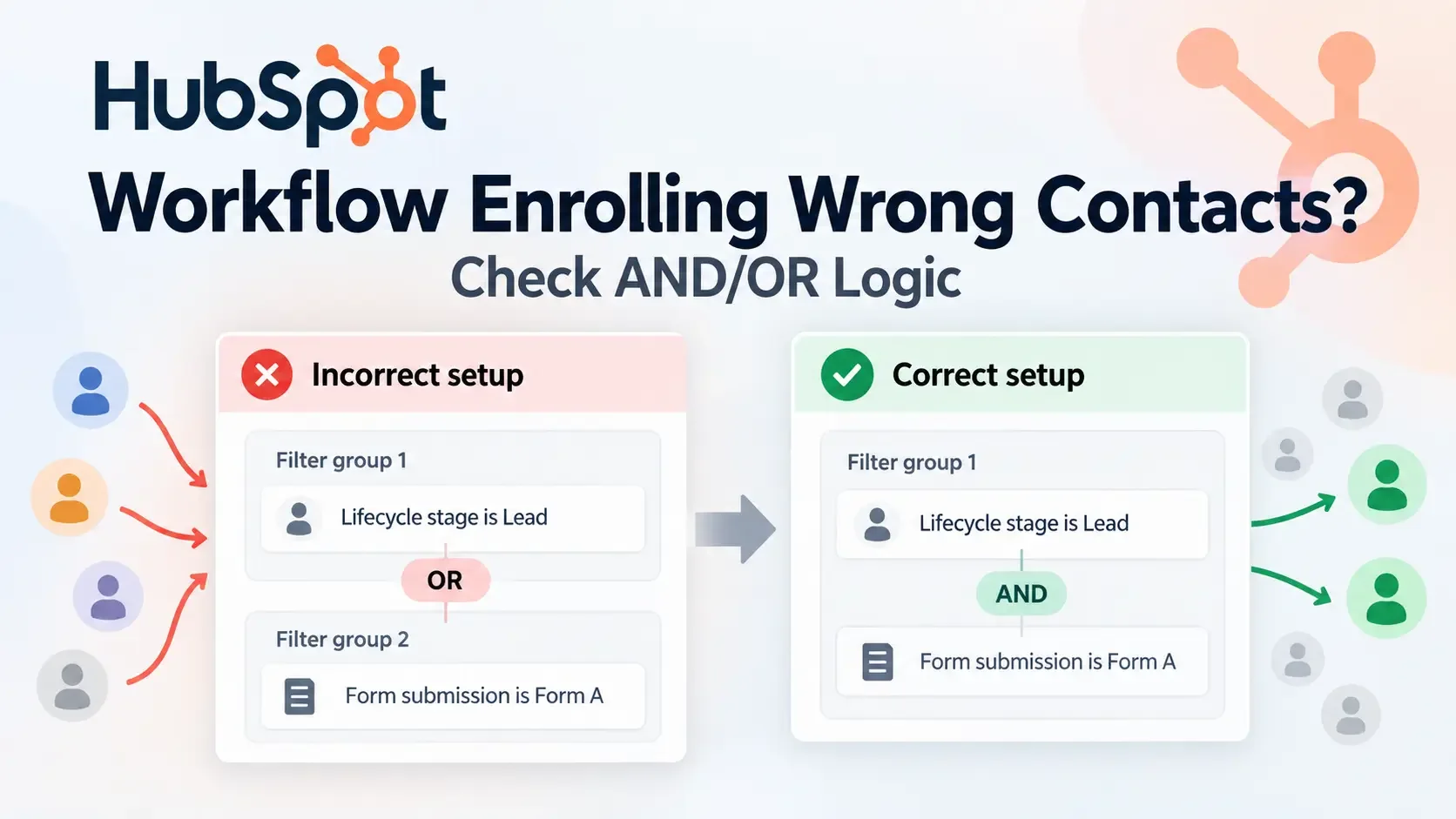
How AND vs. OR Works in HubSpot Enrollment Triggers
The most important thing to understand is the difference between a filter and a filter group. A filter is one condition, such as Lifecycle Stage = Lead. A filter group contains one or more conditions that HubSpot evaluates together.
By default, filters inside the same group use AND, while separate filter groups use OR. A typical filter-based trigger therefore works like this:
FILTER GROUP 1
Lifecycle Stage = Lead
        AND
Form submission = Form A
             │
             OR
             │
FILTER GROUP 2
Lifecycle Stage = Customer
        AND
Form submission = Form B
In plain logic, HubSpot is evaluating (Lead AND Form A) OR (Customer AND Form B). A contact does not need to satisfy all four conditions. It only needs to satisfy every required condition inside one complete qualifying group.
For example, a Lead who submitted Form A can qualify through Group 1 even if that contact is not a Customer and never submitted Form B. That group-level distinction is where many over-enrollment problems begin.
Suppose your actual requirement is much simpler: enroll only contacts who are Leads and have submitted Form A. In that case, both conditions should belong to the same required path:
FILTER GROUP 1
Lifecycle Stage = Lead
        AND
Form submission = Form A
A Lead who never submitted Form A fails. A Form A submitter who is not a Lead also fails.
The structure becomes too broad if those conditions are separated into two OR groups. In that setup, being a Lead becomes one qualifying route and submitting Form A becomes another. Either condition can be enough to enroll the contact.
There is one important current HubSpot detail: same group does not always mean AND, and separate groups do not always mean OR. Those are the defaults, but HubSpot allows the operators to be changed. If someone manually changes the logic, trust the AND/OR labels displayed in the workflow, not the visual grouping alone.
Correct vs. Incorrect Filter Setup
The easiest way to identify an enrollment-logic problem is to compare the business rule you intended with the rule HubSpot is actually evaluating.
| Intended Business Logic | Misconfigured Setup — Wrong Enrollment | Correct Setup — Expected Behavior |
|---|---|---|
| Enroll Leads who submitted Form A. | Lead OR Form A submitted | Lead AND Form A submitted |
| Enroll people in California or New York who opened Email A. | State = CA or NY OR Email opened | CA AND Email opened OR NY AND Email opened |
| Enroll Pro-plan customers with Active accounts. | Plan = Pro OR Account Status = Active | Plan = Pro AND Account Status = Active |
| Enroll US Leads who requested a demo. | Lead + US OR Demo submitted | Lead AND US AND Demo submitted |
The California/New York example shows why OR is not automatically wrong. Suppose your business rule is: “Enroll contacts in California or New York, but only if they opened Email A.” A clean structure would be:
FILTER GROUP 1
State = California
        AND
Email A = Opened
             │
             OR
             │
FILTER GROUP 2
State = New York
        AND
Email A = Opened
That means (California AND Email opened) OR (New York AND Email opened). A California contact who did not open the email fails Group 1. A New York contact who did not open the email fails Group 2. A Texas contact who opened the email also fails because neither complete group is satisfied.
The problem appears when the email-open condition is placed in its own OR group. That creates an independent route into the workflow, so a Texas contact who opened the email could qualify even though the location requirement was supposed to be mandatory.
How to Fix a HubSpot Workflow Enrolling Wrong Contacts
1. Check Why the Unwanted Contact Enrolled
Start with a contact that definitely should not have entered the workflow. Do not immediately rearrange the filters.
Open the workflow's Enrollment history, find the affected contact, and inspect the enrollment event. Use the available Why did this enroll? information to determine what HubSpot evaluated when the contact entered.
Suppose the workflow was intended for US Leads who requested a demo, but a Canadian contact entered. You inspect the trigger and discover that Lifecycle Stage = Lead and Country = United States are grouped together, while Form submission = Demo Request sits in a separate OR group.
That explains the enrollment. The Canadian contact did not bypass the country requirement; it qualified through the separate form-submission route. The workflow behaved according to the configured logic, even though that logic did not match the intended audience.
Historical enrollment information is especially useful because the workflow or contact may have changed since the enrollment occurred. Today's properties do not always tell you what HubSpot evaluated at the time.
2. Write the Intended Rule Before Editing
Before changing the trigger, describe the intended audience in one normal sentence.
For example: “Enroll contacts only when they are Leads, are located in the United States, and submitted the demo request form.”
That sentence translates directly to one required path: Lead AND United States AND Demo Request submitted. There is no need for separate OR groups because there is only one valid way to qualify.
A different business rule might be: “Enroll California customers who opened Email A or New York customers who opened Email A.” That requires two qualifying paths: California AND Customer AND Email opened, or New York AND Customer AND Email opened.
Writing the rule first prevents a common troubleshooting mistake: changing filters until one problematic contact disappears without checking whether legitimate contacts can still qualify. The goal is not simply to make the audience smaller. It is to make the enrollment boundary accurate.
3. Check the Logic Inside Each Group
Once the intended rule is clear, inspect the individual filter groups and read the operator HubSpot actually displays.
If the workflow shows Lifecycle Stage = Lead AND Form submission = Form A, both conditions are required. If it shows Lifecycle Stage = Lead OR Form submission = Form A, either condition may be enough to satisfy that part of the trigger.
This distinction matters even when both filters visually appear inside the same group. Because HubSpot allows the default logic to be changed, the operator itself is more important than the visual arrangement.
If you intended both conditions to be mandatory but the operator between them shows OR, that may be the entire cause of the over-enrollment.
4. Check the Logic Between Groups
Next, inspect how complete groups relate to one another. By default, separate filter groups use OR, which means each group usually acts as a complete alternative path.
Imagine Group 1 requires Lifecycle Stage = Lead AND Country = United States AND Plan = Pro, while Group 2 contains only Form submission = Pricing Form. If those groups are connected with OR, submitting the pricing form may be enough to qualify the contact even when the person is not a US Pro Lead.
If the intended audience is US Pro Leads who submitted the pricing form, the form condition should be part of the same required path rather than an independent group.
The useful mental model is simple: when groups are connected with OR, ask whether each group, by itself, represents a complete audience that you would genuinely allow into the workflow. If the answer is no, one of the groups is probably too broad.
HubSpot also allows the relationship between groups to be changed from its default OR to AND. If the workflow has been customized this way, again use the operator displayed in the editor as the source of truth.
5. Remove the Unintended Shortcut
Once you identify the broad path, make the smallest correction needed.
For example, suppose the workflow is intended for active Pro customers in the United States, but the current structure requires Account Status = Active AND Plan = Pro in one group and Country = United States in a separate OR group. The country condition has become an alternative route instead of an additional requirement.
The corrected logic should require all three conditions together: Account Status = Active AND Plan = Pro AND Country = United States.
Avoid rebuilding the entire trigger when one misplaced condition is responsible. Small, controlled changes make it easier to verify what solved the problem and reduce the chance of creating another enrollment issue.
6. Test the Boundary Cases
Do not test only a contact that should enroll. Boundary cases are far more useful because they reveal whether one condition is still acting as an unintended shortcut.
If your corrected rule is Lifecycle Stage = Lead AND Form submission = Form A, test these three records:
| Test Contact | Expected Result |
|---|---|
| Lead + submitted Form A | Enroll |
| Lead + did not submit Form A | Do not enroll |
| Not a Lead + submitted Form A | Do not enroll |
The second and third contacts each satisfy only half of the requirement. If either one qualifies, the logic is still too broad.
For a multi-group setup such as (California AND Email opened) OR (New York AND Email opened), test a California opener, a New York opener, and someone from another state who opened the same email. The first two should qualify. The third should not.
The goal is not fewer enrollments. It is the correct enrollments.
Other Reasons “Wrong” Contacts Can Enroll
If the AND/OR structure now matches the business rule but a contact still appears to have enrolled incorrectly, check nearby causes before changing the filter groups again.
Negative filters and blank properties: Suppose the trigger says
Country is not equal to United States. A contact whose Country property is blank can behave differently from a contact with a known non-US country. If the property must have a value before enrollment, require it to be known as part of the logic.Broad form conditions: A workflow intended for one specific conversion can become much broader if its form condition matches more submissions than expected. Check the exact form and page criteria rather than assuming every form-related enrollment is an AND/OR problem.
Merged contacts: If a contact enrolled shortly after two records were merged, inspect the workflow's merged-record enrollment setting. HubSpot provides a separate option controlling whether an updated merged record can enroll when it meets the workflow conditions.
Older workflow configuration: Suppose today's trigger is
Lead AND Form A, but last week's version wasLead OR Form A. A contact that enrolled last week may look impossible when you inspect today's workflow. Use the historical enrollment event rather than today's trigger to diagnose an old enrollment.
These are secondary checks. If the enrollment history shows that an unwanted OR route qualified the contact, correct that route first.
This article also applies specifically to filter-based enrollment criteria. Event-based workflow triggers use a different structure, so confirm that the workflow is using filter criteria before applying the filter-group diagnosis above.
How to Confirm the Fix
Use one final logic check before treating the issue as resolved.
Suppose the workflow should enroll Leads in either California or New York, but only when they have submitted the Demo Form. The final structure should represent (Lead AND California AND Demo submitted) OR (Lead AND New York AND Demo submitted).
Test the outcomes:
| Contact | Should Enroll? |
|---|---|
| California Lead + Demo submitted | Yes |
| New York Lead + Demo submitted | Yes |
| California Lead + No demo submission | No |
| Texas Lead + Demo submitted | No |
| California non-Lead + Demo submitted | No |
If those results match what HubSpot produces, the filter-group logic is behaving as intended.
If an unexpected contact still enters, return to Enrollment history and inspect the path that qualified it instead of making the trigger progressively more restrictive.
If a valid contact now fails to enter, the problem has changed. Check a separate issue such as suppression, re-enrollment, or existing-record enrollment rather than continuing to alter AND/OR logic.
Related HubSpot Workflow Problems
If the symptom is different, use the troubleshooting guide that matches what is actually happening:
If a contact completed the workflow but will not enter again, see HubSpot Workflow Not Re-Enrolling Contacts? Enable Re-Enrollment.
If the contact enters but an automated email is skipped, see HubSpot Workflow Email Not Sending? Check Marketing Contact Status.
If a contact appears to satisfy the enrollment criteria but never enters, see HubSpot Contact Not Enrolling? Check the Suppression List.
If new contacts enter but older qualifying contacts were missed when the workflow went live, see HubSpot Workflow Skipping Existing Contacts? Check This Setting.
If a contact entered correctly and was later removed, see HubSpot Contact Suddenly Unenrolled? Check Workflow Connections.