
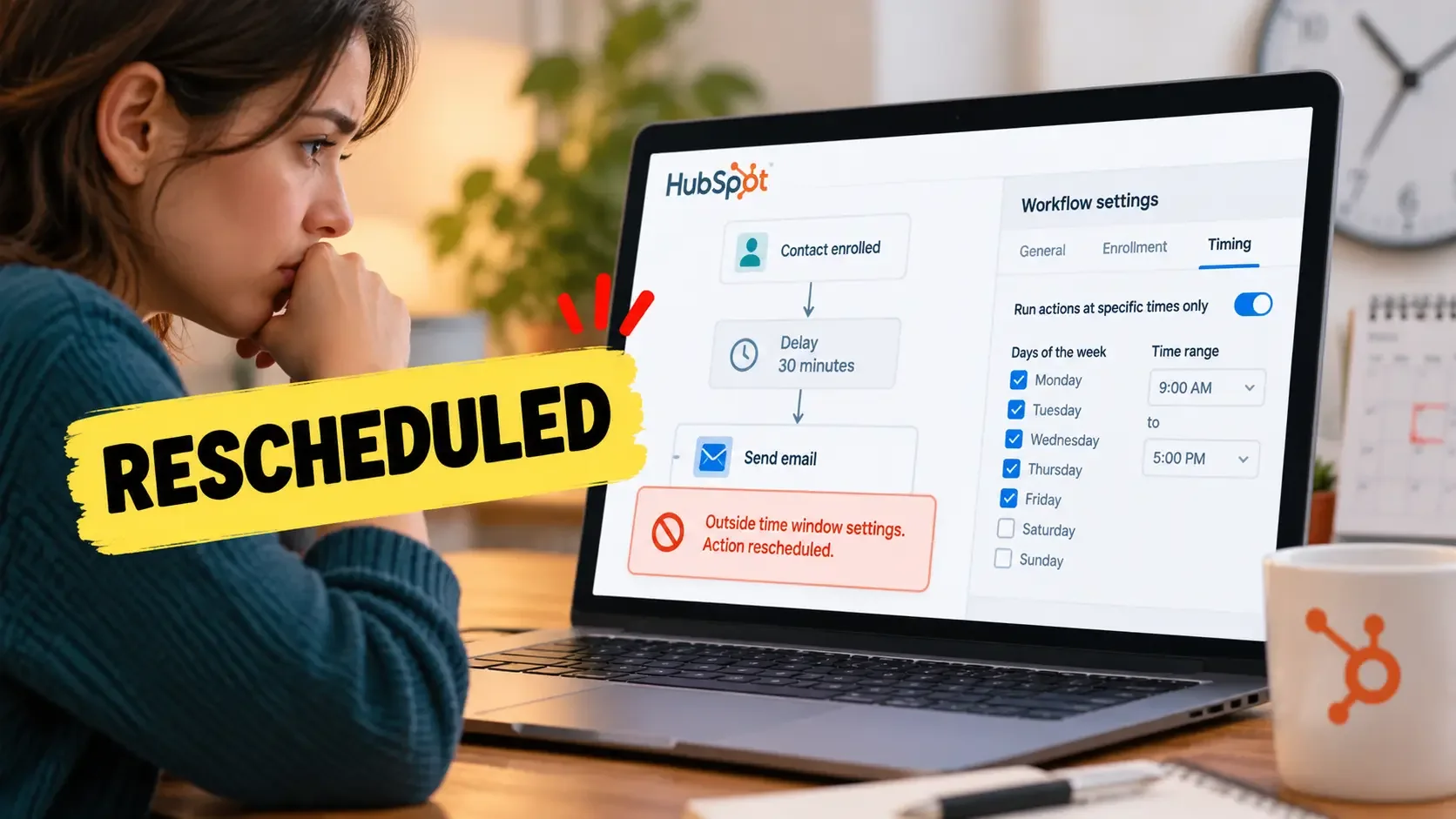
A HubSpot workflow action can appear delayed even when the workflow itself is working normally. A record may reach an email, task, property update or another action on time but HubSpot can postpone that action because the workflow is configured to execute actions only during selected days and hours.
When this happens, the workflow history can show “Outside time window settings. Action rescheduled for [new date and time].” HubSpot documents this message as a timing-setting issue rather than an enrollment failure. The record reached the action but the action fell outside the workflow’s permitted execution window.
The first thing to check is therefore the workflow-level timing configuration. If Run actions at specific times only is enabled, compare the action’s original execution time with the days, hours and account timezone configured for that workflow.
Problem Snapshot
The problem usually looks like a workflow delay even though no additional Delay action was intentionally added. A contact or other record progresses normally until it reaches an action and HubSpot then holds that action until the next allowed execution period.
| Diagnostic point | Expected behaviour | Actual behaviour |
|---|---|---|
| Record reaches action | Action runs immediately | HubSpot checks workflow timing rules |
| Current time | Any time should be acceptable | Current time is outside the allowed window |
| Action result | Email, task, or property update executes | Action is rescheduled |
| Workflow history | Normal action completion | Outside time window message appears |
| Next execution | Immediate | Next eligible day/time |
This is different from a workflow becoming stuck or an action failing. HubSpot’s timing settings specify when workflow actions are allowed to execute and by default actions run as soon as an enrolled record reaches them unless a timing restriction has been configured.
The distinction matters because changing individual delays may not solve the problem. If the record is already reaching the intended action correctly, the workflow-level execution window should be checked before the workflow architecture is changed.
Exact Error Message
HubSpot documents the following workflow history message for this situation:
“Outside time window settings. Action rescheduled for [new date and time]”
The message appears when the workflow has been restricted to a specific execution timeframe and an enrolled record reaches an action outside that timeframe. HubSpot’s documented options are to leave the restriction in place and allow the action to run at its next eligible time or turn off Run actions at specific times if the workflow should execute actions at any time.
Seeing this message is therefore useful because it immediately separates a schedule restriction from many other workflow problems. If the history contains a different error, diagnose that message instead of assuming that the workflow timing window is responsible.
Timeline Example
Consider a workflow configured to execute actions only from Monday through Friday, 9:00 AM to 5:00 PM. A record reaches a delay shortly before the allowed window ends on Friday afternoon.
| Time | Workflow event |
|---|---|
| Friday, 4:55 PM | Record enters a 30-minute delay |
| Friday, 5:25 PM | Delay completes |
| Friday, 5:25 PM | Record reaches the next action |
| Friday, 5:25 PM | Action falls outside the configured execution window |
| Next eligible window | Action is rescheduled for Monday morning |
The important detail is that the delay itself is not extended to Monday simply because the workflow has limited execution hours. HubSpot states that delays and If/Then branches are not rescheduled by these workflow timing restrictions; instead, the following action is rescheduled when necessary.
HubSpot also notes that rescheduled actions execute within a 15-minute window to reduce workflow overload. If the earliest permitted execution time is 9:00 AM, for example, the action can be scheduled between 9:00 and 9:15 AM rather than necessarily firing at exactly 9:00:00.
Timing Rules Matrix
Understanding which workflow components are affected prevents a timing restriction from being confused with an ordinary delay or branch problem.
| Component | Behaviour under timing restrictions | Key operational detail |
|---|---|---|
| Workflow actions | Rescheduled | Action waits for the next eligible execution period |
| Set-time delays | Not rescheduled | Delay continues according to its own configuration |
| Delay Until Event | Not rescheduled by the workflow window | Record follows the delay’s own exit rules |
| If/Then branches | Not rescheduled | Branch can be reached outside the action window |
| Action after a delay or branch | May be rescheduled | Timing rules are checked when the record reaches the action |
| Rescheduled execution time | Up to a 15-minute execution window | An action due at 9:00 AM may execute between 9:00 and 9:15 AM |
HubSpot’s documentation gives a similar example: a workflow restricted to Monday through Thursday can have a record exit a two-day delay on Saturday but the next action is held until the next available execution period. This confirms that the workflow timing setting controls action execution rather than simply pausing the entire workflow clock.
That distinction also explains why a workflow can appear to progress through a delay correctly and then suddenly stop at the next action. The record is not necessarily stuck; the next action may simply be waiting for permission to execute.
Step-by-Step Check in Workflow Settings
1. Open the affected workflow
In HubSpot, navigate to Automation > Workflows and open the workflow that contains the rescheduled action. Start with the exact workflow shown in the history message so that you do not accidentally inspect a similar automation with different timing rules.
If several workflows act on the same contact or property, confirm the workflow name first. Workflow-level timing settings apply to the workflow you are editing rather than automatically applying the same schedule to every automation in the account.
2. Open the workflow Settings panel
From the workflow editor, click Settings in the upper-left area. In HubSpot’s current interface, timing controls appear in the Timing section of the settings panel.
This is one place where an older tutorial or screenshot can be misleading because the workflow editor interface can change. Use the current Timing section rather than searching for a separate General page if your portal shows the newer layout.
3. Check “Run actions at specific times only”
Look for Run actions at specific times only and determine whether it is enabled. When it is active, HubSpot limits workflow actions according to the selected days and hours, using the account timezone for the workflow timing rules.
Also check the account timezone if the rescheduling time appears unexpectedly early or late. HubSpot notes that an account without a configured timezone can fall back to EST for workflow timing settings, making timezone configuration relevant during diagnosis.
4. Compare the permitted window with the workflow history
Return to the affected record’s workflow history and compare the time it reached the action with the configured execution period. If the action was reached after the daily cutoff, before the permitted starting time or on a disallowed day, the rescheduling message is consistent with the workflow settings.
HubSpot uses slightly different rescheduling behaviour depending on when the record reaches the action. If both the day and time are outside the allowed settings, the action moves to the earliest permitted time on the next available day; if the day is disallowed but the time falls within the configured hours, HubSpot can reschedule it for the same time on the next available day.
5. Decide whether the restriction is intentional
If the schedule is deliberate, you generally do not need to treat the message as a workflow malfunction. The action can remain queued until HubSpot reaches the next permitted execution period.
If the workflow is supposed to process operational updates continuously, consider whether the global timing restriction is actually appropriate. Turning off the restriction allows actions to execute when records reach them, while more targeted delays can be used where individual communications genuinely need scheduling.
Delay vs. Action Timing Distinction
A common misunderstanding is that Run actions at specific times pauses the entire workflow. HubSpot’s current documentation makes a narrower distinction: delays and If/Then branches are not rescheduled by this setting but an action reached outside the permitted period can be rescheduled.
For example, suppose a 24-hour delay begins on Sunday at 10:00 AM and completes on Monday at 10:00 AM. The delay follows its own timing rules. If the next action is allowed at Monday 10:00 AM, it can proceed; if Monday 10:00 AM falls outside the workflow’s permitted action window, that next action waits until an eligible time.
The same distinction helps when troubleshooting event-based delays. If the real issue is that a record is not leaving an event delay when expected, use HubSpot Workflow “Delay Until Event” Not Working? Check Event Timing instead, because that problem concerns the delay’s exit condition rather than a workflow-level execution window.
Likewise, an If/Then branch can be evaluated even when a later action will have to wait. If a contact unexpectedly routes through None met, use HubSpot Workflow Sending Contacts to “None Met”? Check Branch Timing to diagnose the branch state rather than assuming that the action schedule changed the branch decision.
Worked Weekend / After-Hours Example
Consider a workflow that sends an internal notification, waits one hour and then updates a property. Its permitted action window is Monday through Friday, 8:00 AM to 6:00 PM.
| Time | What happens |
|---|---|
| Saturday, 2:00 PM | Contact submits a form and enrolls |
| Saturday, 2:00 PM | Contact reaches the internal notification action |
| Saturday afternoon | Notification cannot execute because Saturday is outside the allowed days |
| Monday, 8:00–8:15 AM | Rescheduled notification executes within the available processing window |
| After notification completes | Record enters the one-hour delay |
| Approximately one hour later | Delay ends and the property-update action is reached |
| Monday business hours | Property update can execute because the time is permitted |
The important sequencing detail is that the one-hour delay does not start on Saturday in this example if the preceding notification action is still pending. The record has not yet progressed beyond that action, so downstream steps wait until the pending action completes.
This can produce a larger timing shift than the administrator initially expects. A single rescheduled action can push every downstream step later because the workflow sequence continues only after the held action has executed.
When to Disable “Run Actions at Specific Times”
Workflow-wide execution restrictions make sense when most actions in the automation should respect the same operational schedule. They can be less suitable when the workflow mixes customer-facing communications with background CRM updates that need to happen promptly.
For example, property changes, lifecycle-stage updates, task creation and other internal processing may not need to wait until normal business hours. If those operations feed other workflows or routing logic, postponing them until the next allowed day can create downstream timing differences that are difficult to diagnose.
A fixed account-level time window can also be awkward for workflows serving contacts across multiple time zones. HubSpot’s workflow timing setting uses the account timezone, so a single business-hours window may not represent the local daytime of every contact.
Before disabling the setting, determine why it was enabled. If the purpose is only to control one email or one scheduled action, a more targeted workflow design may preserve that timing without delaying unrelated operational actions.
Use targeted delays when only one step needs scheduling
HubSpot provides several delay types, including set amounts of time, calendar dates, date or datetime properties, event occurrence, day of the week and time of day. These allow timing to be controlled around a particular portion of the workflow rather than necessarily restricting every action in the automation.
For example, a customer-facing email that should send on Tuesday morning can be preceded by an appropriate day/time delay while property updates elsewhere in the workflow remain free to execute normally. The best structure depends on whether you are controlling one communication or intentionally restricting the entire workflow.
If an email action eventually executes but the marketing email itself still does not send, that becomes a different troubleshooting path. Your HubSpot Workflow Email Not Sending? Check Marketing Contact Status article covers that failure without mixing email eligibility into this timing-setting diagnosis.
Final Diagnostic Checklist
Before changing the workflow schedule, verify the evidence in the history and settings together. This prevents an intentional business-hours configuration from being mistaken for a workflow error.
| Diagnostic check | What to confirm |
|---|---|
| Workflow message | History contains “Outside time window settings” |
| Timing setting | Run actions at specific times only is enabled |
| Allowed days | The action did not arrive on a disallowed day |
| Allowed hours | The action did not arrive before or after the configured window |
| Account timezone | Workflow timing is being interpreted in the expected timezone |
| Downstream sequence | Later delays and actions are shifted because the pending action must complete first |
| Business requirement | The entire workflow genuinely needs a global execution restriction |
| Alternative design | A targeted delay could control only the time-sensitive step |
If the history explicitly shows the outside-time-window message and the execution timestamp falls outside the workflow’s configured schedule, the rescheduling is expected behaviour rather than an unexplained failure. You can keep the restriction and let the action run in the next available window or remove the global timing restriction if the workflow should execute continuously.
The key is to change the setting only after confirming what the workflow actually needs. A business-hours restriction can be useful for deliberately scheduled automation but when it unintentionally holds CRM updates or shifts downstream timing, a more targeted delay structure can provide better control without slowing every action in the workflow.