
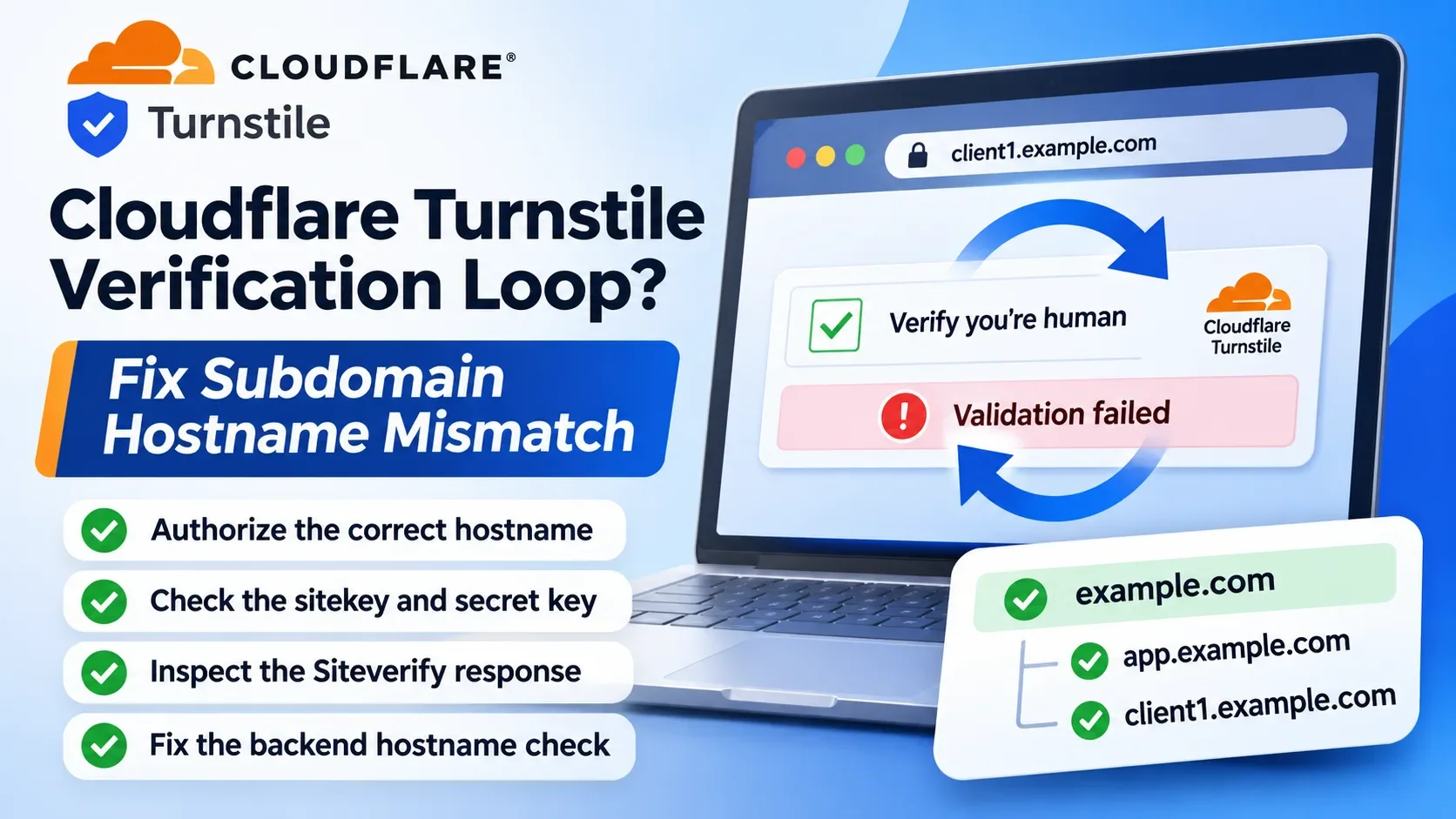
A Cloudflare Turnstile verification loop on a dynamic subdomain can occur when the widget is not authorized for the current hostname or when the application's backend rejects a valid verification because its hostname does not match the expected domain.
To resolve the problem, check the affected subdomain in Cloudflare Turnstile's Hostname Management settings, verify the widget credentials and inspect the server-side Siteverify response. If Cloudflare successfully validates the token but the application starts verification again, examine its hostname comparison and request-handling logic.
Find Where Verification Fails
Before modifying any configuration, determine whether Turnstile itself is failing or whether the application rejects verification after the widget completes.
Open the affected page in Chrome or Edge, press F12 and select the Console tab. Reload the page, attempt verification and check whether an error appears before or after Turnstile completes.
The following results help identify the next troubleshooting action.
| Error or behaviour | Likely cause | What to check |
|---|---|---|
110200 | Hostname not authorized | Turnstile Hostname Management |
110100 | Invalid sitekey | Frontend widget configuration |
110110 | Sitekey not found | Sitekey and widget settings |
400021 | Sitekey region and script domain mismatch | Sitekey and script configuration |
invalid-input-secret | Invalid server-side secret key | Backend credentials |
invalid-input-response | Invalid, malformed or expired token | Token submission |
timeout-or-duplicate | Expired or previously validated token | Token lifecycle |
| Widget succeeds but verification repeats | Possible backend rejection | Siteverify and application logs |
Cloudflare's error 110200 is the clearest indication of a widget hostname authorization problem. If the browser reports this error, correct the hostname configuration before investigating token expiration or application sessions.
If no error appears in the console, open the Network tab and enable Preserve log. Complete verification again and check whether the application submits the form, receives an error response or redirects back to the verification page.
Check the Affected Hostname
Dynamic applications often use different subdomains for customer accounts, dashboards, authentication, and tenant-specific services.
For example, a website might operate on these hostnames:
example.com
app.example.com
client1.example.com
client2.example.com
A widget that works on app.example.com may fail on client1.example.com if its authorized hostname configuration does not cover the second address.
To identify the actual hostname, open the failing page and enter this command in the browser console:
window.location.hostnameIf the result is:
client1.example.comThat is the hostname you should compare with the widget's configuration.
If your application redirects visitors between multiple subdomains, perform this check on the page where Turnstile actually runs. The original login address may not be the hostname where verification occurs.
Correct Cloudflare Hostname Management
If error 110200 appears, open the Cloudflare dashboard and locate the Turnstile widget used by the affected application.
Navigate through:
Cloudflare Dashboard → Turnstile → Your Widget → Settings → Hostname Management
Select Add Hostnames, then add an appropriate authorized hostname.
Cloudflare allows a widget to operate on the configured hostname and its subdomains. For example, authorizing:
example.comAlso permits the widget to run on:
app.example.com
client1.example.com
client2.example.com
However, authorizing only:
app.example.comDoes not authorize the sibling hostname:
client1.example.comThis difference is particularly important for SaaS platforms that generate customer subdomains automatically.
Avoid Invalid Hostname Entries
Cloudflare does not accept wildcard characters in standard Turnstile hostname configuration.
Do not enter:
*.example.com
https://example.com
example.com/login
example.com:443
Instead, enter the appropriate domain or subdomain without a scheme, path, port or wildcard.
Choose the narrowest hostname scope that supports the application. Authorizing example.com covers its subdomains, but authorizing login.example.com limits the widget to that hostname and its descendants.
After updating the settings, reload the affected page and attempt verification again.
What if Error 110200 Remains?
Confirm that the widget you edited is the same widget being loaded by the affected page. Applications with separate production, staging or tenant configurations may use different sitekeys.
Check the site's rendered Turnstile configuration and compare its sitekey with the widget in the Cloudflare dashboard.
If the keys do not match, correct the frontend configuration or modify the appropriate widget instead.
If error 110200 disappears but verification still loops, the widget may now be loading correctly. Continue by checking whether the application can validate and accept its token.
Check the Sitekey and Secret Key
A Turnstile widget uses two separate credentials: a public sitekey for the browser and a private secret key for server-side verification.
If the frontend and backend use credentials belonging to different widgets, the browser may complete the challenge while the application fails to validate the submitted token.
Open the application's configuration and compare both credentials with the intended widget in Cloudflare.
Check for these configuration problems:
The frontend uses an outdated or incorrect sitekey.
The backend uses a secret key from another widget.
Production and staging credentials have been mixed.
A deployment has not loaded the updated environment variables.
The sitekey belongs to a disabled widget.
If the browser reports 110100 or 110110, investigate the sitekey first. If the Siteverify response contains invalid-input-secret, investigate the backend secret key.
Never expose the secret key in browser-side JavaScript or publicly accessible diagnostic endpoints. It must remain in the application's secure server-side configuration.
After correcting any credential mismatch, test the application again. If both credentials match and verification still fails, inspect the actual server-side response rather than rotating keys unnecessarily.
Inspect the Siteverify Response
Cloudflare Turnstile requires server-side verification before an application should accept a protected request.
When the visitor completes Turnstile, the browser receives a token that the application must submit to Cloudflare's Siteverify API.
The verification endpoint is:
POST https://challenges.cloudflare.com/turnstile/v0/siteverifyThe backend sends the secret key using the secret parameter and the visitor's token using the response parameter.
Cloudflare returns a JSON response indicating whether verification succeeded.
A successful response can resemble:
{
  "success": true,
  "hostname": "client1.example.com",
  "error-codes": []
}
This is an illustrative example rather than a captured result from a particular deployment.
The success field indicates whether Cloudflare accepted the token. The hostname field identifies where the challenge was served.
Where to Find the Response
The Siteverify request runs from the application server, so it generally will not appear as a direct request in the browser's Network tab.
Open the backend route or controller responsible for processing the protected form, login or API request.
Search the application's server-side code for:
cf-turnstile-responseOr:
/turnstile/v0/siteverifyThese strings can help identify where the application receives the token and sends it to Cloudflare.
Once you locate the validation handler, inspect the decoded response returned by Siteverify.
If the application already records verification failures, check those logs first. Otherwise, temporarily add controlled diagnostic logging for the response fields needed to identify the problem.
For a PHP application that stores the decoded Siteverify response in $result, an example is:
error_log(json_encode([
    'success' => $result['success'] ?? null,
    'hostname' => $result['hostname'] ?? null,
    'errors' => $result['error-codes'] ?? []
]));
This example assumes $result already contains the decoded Siteverify response. Add the logging only after the existing validation request has completed.
The example records the verification result, hostname and error codes without printing the secret key or token. Keep diagnostic logs access-controlled and remove temporary logging after troubleshooting.
Interpret the Result
The response identifies which correction is appropriate.
| Siteverify result | Meaning | Next action |
|---|---|---|
success: true | Cloudflare accepted the token | Check application-side hostname validation |
invalid-input-secret | Secret key is invalid | Correct backend credentials |
missing-input-response | Token was not submitted | Inspect form or API payload |
invalid-input-response | Token is invalid, malformed, or expired | Check token generation and submission |
timeout-or-duplicate | Token expired or was previously validated | Generate a fresh token |
If Siteverify returns success: false, resolve the reported validation problem before changing the application's hostname comparison.
If Siteverify returns success: true, the token was accepted by Cloudflare. The next step is to determine whether the application rejects the verified hostname or fails during subsequent request processing.
Fix Backend Hostname Mismatch
An application can reject a valid Turnstile token when its hostname validation expects one fixed domain but the widget operates across several authorized subdomains.
Consider an application that validates tokens from:
client1.example.comCloudflare might return:
{
  "success": true,
  "hostname": "client1.example.com",
  "error-codes": []
}
However, the backend may compare the returned hostname against:
example.comIf the application requires an exact match, it rejects the result even though Cloudflare accepted the token.
This is an application-side hostname validation mismatch. Changing Cloudflare's Hostname Management settings will not correct backend code that continues to reject legitimate tenant domains.
Correct the Validation Logic
Inspect the application's Siteverify response handler and identify how it compares the verified hostname.
A problematic PHP condition might look like this:
if ($result['hostname'] !== 'example.com') {
    // Reject verification
}
That condition does not account for a legitimate Turnstile widget running on client1.example.com.
For an application that maintains verified tenant hostnames, validate the returned hostname against the authorized domains belonging to the current tenant.
The following PHP function demonstrates the necessary checks:
function acceptsTurnstileHost(
    array $result,
    array $tenantHostnames
): bool {

    if (($result['success'] ?? false) !== true) {
        return false;
    }

    $hostname = $result['hostname'] ?? null;

    if (!is_string($hostname) || $hostname === '') {
        return false;
    }

    $hostname = strtolower(rtrim($hostname, '.'));

    foreach ($tenantHostnames as $allowed) {
        if (
            is_string($allowed) &&
            $hostname === strtolower(rtrim($allowed, '.'))
        ) {
            return true;
        }
    }

    return false;
}
This function checks that Siteverify succeeded, confirms that a hostname was returned and compares it against the application's permitted hostnames.
It is an integration example, not a complete Turnstile verification system. It must be called after a genuine server-side Siteverify request, using trusted tenant-domain records supplied by the application's authorization system.
Do not populate the allowed hostname list directly from untrusted form fields or request headers. The backend should retrieve authorized domains from verified application configuration or trusted tenant records.
If your Turnstile implementation also uses an action value, validate that value against the expected protected operation.
After correcting the hostname check, submit a fresh verification and confirm that the application accepts the intended tenant domain.
What if the Hostname Already Matches?
If Siteverify succeeds and the verified hostname is authorized, investigate what happens immediately after validation.
Check whether the backend creates the expected session, completes the protected operation or redirects the visitor to another page.
A repeated redirect to the verification route can make Turnstile appear broken even when the token and hostname are valid.
Inspect the application logs and the browser's preserved Network requests to find the response that restarts verification. Correct that application flow instead of changing Cloudflare settings that are already working.
Fix Expired or Reused Tokens
Cloudflare Turnstile tokens are valid for five minutes and can only be validated once.
When an application submits an expired or previously validated token, Siteverify can return:
timeout-or-duplicateThis can happen when a form remains open too long or the same token is submitted repeatedly.
Open the application's server-side validation logs and check whether this error appears during the failed attempt.
If it does, inspect the form submission handler for duplicate requests or retained tokens.
Generate a Fresh Token
When a token expires or has already been consumed, the application must obtain a new verification token.
For an existing Turnstile widget, the application can use:
turnstile.reset();The widget should then issue a fresh token through the normal verification flow.
Make sure the application replaces the previous token before another submission. Resetting the visual widget while continuing to send an old token will not correct the validation failure.
If the same error returns, inspect whether multiple event handlers or repeated API calls are submitting the same token.
Use the browser's Network tab to confirm whether one visitor action triggers several application requests.
Correct the duplicate submission or token-handling logic, then repeat verification with a fresh token.
Check Customer-Owned Domains
A SaaS platform may support both automatically generated subdomains and custom domains owned by customers.
For example:
client1.example.com
client2.example.com
customer-business.com
Authorizing example.com covers the first two hostnames because they belong to the same domain hierarchy.
It does not authorize the unrelated domain customer-business.com.
If Turnstile runs directly on a customer's custom domain, check whether that hostname is authorized in the widget's configuration.
Add the appropriate domain where the widget's hostname limits permit it, then verify that the backend recognizes the domain as belonging to the correct tenant.
For platforms managing many customer-owned domains, review Cloudflare's hostname limits before designing an automated provisioning process.
Cloudflare's standard hostname management permits up to 10 hostnames per widget on the Free plan and up to 200 on Enterprise. Eligible Enterprise configurations also offer additional hostname-management capabilities.
Do not remove hostname restrictions merely to eliminate a verification error. A secure deployment should control both where the widget can operate and which verified hostnames the application accepts.
If Verification Still Loops
If the previous corrections do not resolve the problem, isolate the remaining failure using evidence from one complete verification attempt.
Open the browser's Network tab, enable Preserve log, and reproduce the error. At the same time, inspect the corresponding application logs and Siteverify response.
Use these results to decide what requires further investigation:
| Remaining symptom | Next troubleshooting action |
|---|---|
110200 continues | Recheck the active sitekey and authorized hostname |
| Sitekey error remains | Verify frontend widget configuration |
| Siteverify rejects the token | Resolve the returned server-side error code |
| Siteverify succeeds but access is denied | Inspect tenant hostname authorization |
| Verification succeeds, then redirects back | Check session creation and redirect logic |
| Multiple validation requests appear | Check duplicate form handlers and token reuse |
| Only customer domains fail | Check custom-domain authorization and tenant mapping |
Avoid making several unrelated configuration changes simultaneously. Correct the failure indicated by the current evidence, then repeat the original action to determine whether the behaviour changed.
If the application logs do not explain the loop, inspect its authentication middleware and session handling.
A session cookie that is not available to the required subdomain, for example, can prevent the application from recognizing a completed login. In that situation, the verification loop is a symptom of session handling rather than a Turnstile hostname authorization error.
If further investigation is required, preserve the relevant application error messages, timestamps and sanitized request details.
Do not publish verification tokens, session cookies, secret keys or other credentials when sharing diagnostic information.
When challenges.cloudflare.com Can not Load
If the browser reports error 200500 or shows a message asking the visitor to unblock challenges.cloudflare.com, investigate the resource-loading problem separately.
A blocked Turnstile iframe is not the same as an authorized widget whose token is rejected by the application.
For that specific issue, follow BusinessTally's guide: “Please Unblock challenges.cloudflare.com”: Remove the Block.
Return to hostname and Siteverify troubleshooting only after the Turnstile resources can load successfully.
Confirm the Loop Is Resolved
After applying the relevant correction, reopen the affected subdomain and complete the same protected operation that previously failed.
Do not consider the problem resolved merely because the Turnstile widget disappears. The application must accept verification and complete the intended login, form submission, or protected request.
Confirm the following results:
Turnstile loads on the intended subdomain without a hostname authorization error.
The widget generates a fresh verification token.
The backend successfully validates the token through Siteverify.
The verified hostname matches the application's authorized tenant records.
The protected operation completes without restarting verification.
For applications supporting multiple dynamic subdomains, repeat the test on another authorized tenant domain.
If customer-owned domains are supported, test one of those separately to confirm that both the Cloudflare configuration and the application's tenant authorization rules work correctly.
Error 110200 points to Cloudflare's hostname authorization settings, while a successful Siteverify response followed by another verification request points toward application-side validation or request handling.
Identifying that distinction allows administrators to fix the actual cause of the Turnstile loop without unnecessarily changing unrelated Cloudflare security settings.