
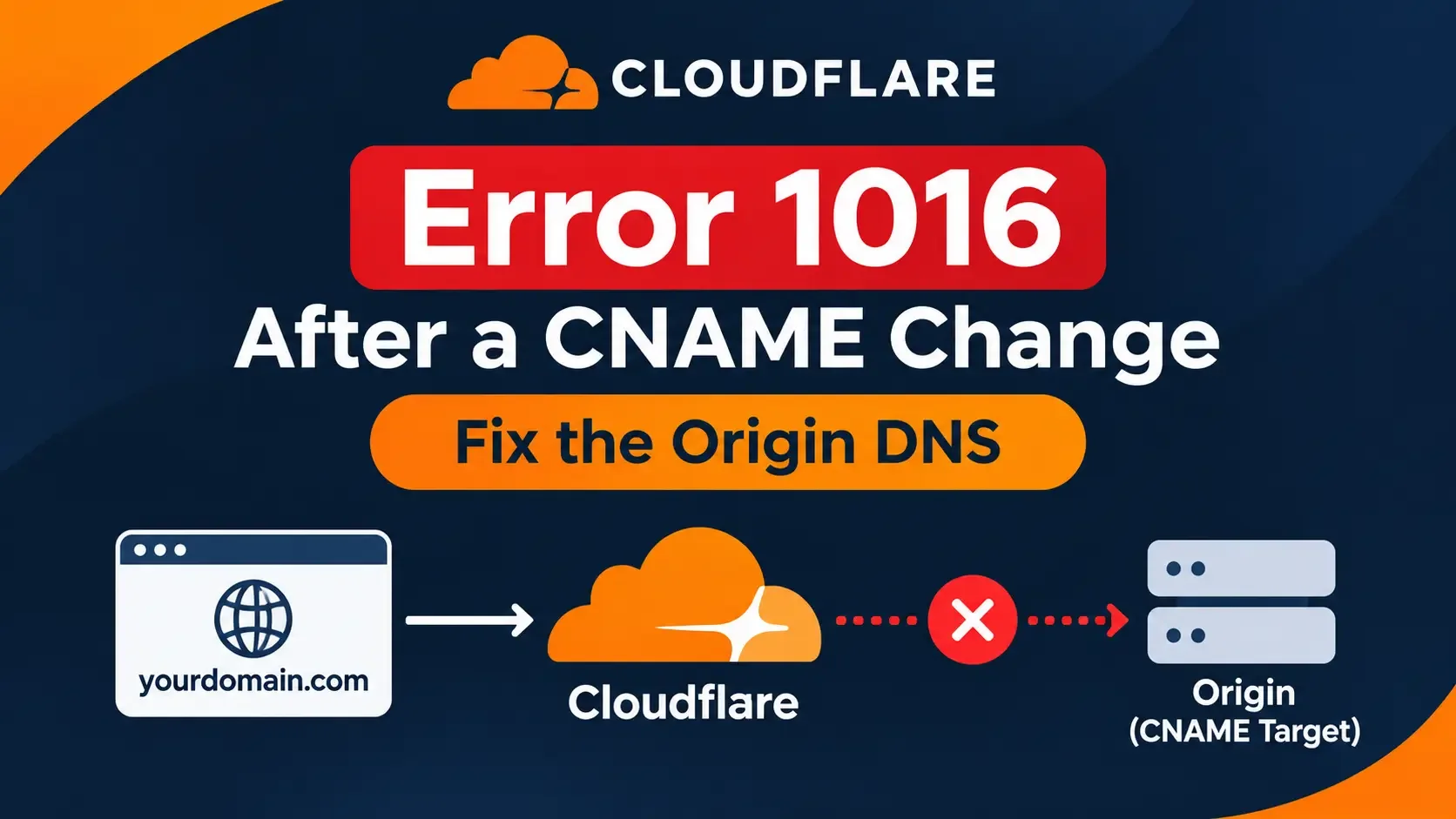
Cloudflare Error 1016 appearing after a CNAME change usually means Cloudflare cannot resolve the hostname configured as your website's origin. The first step is to check the new CNAME destination and confirm that it resolves to a usable IP address.
You might encounter this problem after moving your website to another hosting provider, connecting a custom domain or replacing an existing DNS record. The change saves successfully in Cloudflare, but visitors see Error 1016 — Origin DNS Error instead of the expected website.
If the destination does not resolve, correcting the CNAME or its underlying DNS records may restore access. If it resolves correctly, you need to investigate whether Cloudflare is using a different origin route or whether the hosting platform has completed its custom-domain configuration.
Why Error 1016 Appears
Cloudflare Error 1016 indicates that Cloudflare cannot resolve the IP address of the origin server. One documented cause is a CNAME record pointing to an external hostname that cannot be resolved through DNS.
A CNAME record connects one hostname to another rather than storing an IP address directly. The destination must eventually resolve to a usable address for Cloudflare to establish an ordinary connection to the intended origin.
For example, a website might previously point to app.old-provider.example. After migrating to another hosting platform, the administrator replaces that destination with app.new-provider.example.
If the new hostname does not exist or its DNS records are incomplete, Cloudflare may be unable to determine where the website is hosted. Visitors can still reach Cloudflare's network but Cloudflare cannot resolve the origin needed to serve the request.
This explains why the public domain can appear to have working DNS while Error 1016 continues. A successful lookup of the public hostname does not necessarily establish that its underlying origin destination is valid.
Check the CNAME Record
Open the Cloudflare dashboard, select the affected domain, and navigate to DNS → Records. Locate the record for the exact hostname displaying Error 1016.
If the error appears at www.example.com, inspect the record named www. The root domain and its www subdomain may use different destinations, so checking only one can lead to the wrong conclusion.
Examine the record type, target hostname and proxy status. A CNAME can be accepted by Cloudflare even when its external destination is no longer available.
For example, the record might contain these values:
| Setting | Example |
|---|---|
| Type | CNAME |
| Name | www |
| Target | app.new-provider.example |
| Proxy status | Proxied |
These values are illustrative and are not intended to represent a working hosting configuration. Your actual destination should match the hostname assigned to your application by its hosting provider.
Compare the Destination
Open your hosting provider's domain settings and find the CNAME value currently assigned to your website. Compare the complete destination with the value saved in Cloudflare.
An outdated hostname is particularly worth investigating after moving between hosting services. Some platforms assign different destinations when applications are recreated, transferred or deployed into another environment.
Small typing errors can also cause resolution failures. A missing character, incorrect subdomain or outdated provider address may direct Cloudflare toward a hostname that does not exist.
If the two values differ, record the existing configuration before changing anything. Having the previous value available makes it easier to investigate the change or restore the earlier route when that route is still supported.
Test the CNAME Target
If the target matches your provider's instructions, check whether the hostname actually resolves. This helps determine whether the problem is the destination itself or another part of Cloudflare's routing configuration.
Do not rely entirely on a DNS lookup of your public website. When a hostname is proxied, Cloudflare normally returns Cloudflare IP addresses rather than the underlying origin address.
Instead, test the destination entered in the CNAME record. The commands below help identify whether that hostname has usable address records.
On Windows
Open Command Prompt and replace the example hostname with your actual CNAME target. Run these commands to inspect its IPv4 and IPv6 records:
nslookup -type=A app.new-provider.example
nslookup -type=AAAA app.new-provider.example
The first command requests A records, while the second requests AAAA records. Examine the returned addresses and any DNS errors to determine whether the hostname resolves.
A destination does not necessarily need both IPv4 and IPv6 records. What matters is whether it has a usable address supported by the intended hosting configuration.
On Linux or macOS
If dig is installed, run the following commands against the destination hostname. They display the DNS response status and records returned for each query.
dig app.new-provider.example A
dig app.new-provider.example AAAA
If the response contains another CNAME, the destination may use an additional DNS alias before reaching its final address. You can inspect the alias relationship with:
dig app.new-provider.example CNAMEMultiple CNAMEs are not automatically a problem. The chain must ultimately reach a usable destination without encountering a missing hostname or circular reference.
Interpret the DNS Results
Different DNS responses require different corrections. Identifying the result before editing your records helps avoid unnecessary changes.
| Result | What it indicates | What to investigate |
|---|---|---|
| NXDOMAIN | The hostname does not exist in DNS | Incorrect or missing destination |
| SERVFAIL | DNS resolution could not be completed | DNS service or DNSSEC problems |
| NOERROR without an address | The requested record type has no usable answer | Missing final address records |
| Valid A or AAAA response | The hostname resolves | Origin routing and provider configuration |
NXDOMAIN
If the lookup returns NXDOMAIN, the requested hostname does not exist in DNS. After a hosting migration, this may indicate an incorrect CNAME destination or an application hostname that has not been provisioned.
Compare the destination with the provider's current instructions. If the value is correct but the hostname still does not exist, the provider may need to restore or create the required DNS record.
SERVFAIL
A SERVFAIL response means the resolver could not complete the DNS query. This may involve authoritative DNS availability, DNSSEC validation or another resolution failure.
The response does not prove that the CNAME value was entered incorrectly. If the hostname matches the provider's instructions, investigate the destination's DNS service before replacing the record.
Missing Address Records
Sometimes the target exists but does not lead to a usable A or AAAA record. This can happen when an alias points to another hostname whose address records are missing.
Cloudflare's CNAME flattening documentation explains that a dangling CNAME can produce an empty DNS response, known as NODATA. This is different from NXDOMAIN because the hostname can exist without providing the requested address information.
If the final destination lacks usable address records, identify who manages that hostname. Correct the records if you control them, or ask the provider to restore the destination when it manages the DNS.
Correct the Origin Target
Once you identify an incorrect destination, return to Cloudflare's DNS Records page and edit the affected CNAME. Replace the existing target with the hostname assigned to your current website or application.
Preserve the record name and other settings unless the hosting provider specifically requires changes. Modifying the target, proxy status and unrelated DNS records together can make the original failure harder to diagnose.
After saving, repeat the DNS lookup against the corrected destination. Confirm that the hostname now resolves before checking whether the public website has recovered.
Avoid replacing a provider-managed CNAME with an IP address discovered through a DNS lookup unless the provider supports that configuration. Some hosting platforms manage changing infrastructure behind a stable hostname.
If the Change Broke the Website
If Error 1016 began immediately after replacing a previously working CNAME, the original value can help identify the change responsible. Compare both destinations with the current hosting configuration before deciding which one should be used.
Restoring the previous target may be a temporary recovery option if the original service remains active and the old configuration is still supported. However, do not restore a destination that has been decommissioned or that points to an unintended application.
If the new provider's assigned hostname does not resolve, the provider may need to complete its application or DNS provisioning. Repeatedly changing the public CNAME will not repair a missing destination managed by another company.
If the Target Resolves
A successful DNS lookup confirms that the tested hostname resolves but it does not establish that Cloudflare is routing the request correctly. The destination might resolve while another Cloudflare configuration still points to an invalid origin.
At this stage, identify how the affected hostname is connected to Cloudflare. Websites using ordinary proxied records, Load Balancing and managed SaaS domains can require different checks.
Cloudflare Load Balancing
If your website uses Cloudflare Load Balancing, requests may be routed through origin hostnames configured inside load-balancer pools. These destinations can differ from the CNAME record displayed in the public DNS settings.
Cloudflare identifies unresolved hostnames in default, regional and fallback pools as possible causes of Error 1016. Inspect the configured origins and test the DNS resolution of the hostnames actually used by those pools.
If a pool contains an outdated destination, update that specific configuration using the correct origin information. Cloudflare also recommends an origin IP-based fallback pool in appropriate configurations where an additional recovery route is needed.
Cloudflare for SaaS
A custom domain connected to a website builder or managed application may use Cloudflare for SaaS. In this arrangement, the platform provider can control the configuration responsible for routing requests to your application.
Cloudflare documents Error 1016 when custom-hostname validation is incomplete, the fallback origin is incorrectly configured or the necessary custom hostname is missing. These conditions can prevent routing even when the customer's CNAME resolves correctly.
Open the platform's domain settings and confirm that your custom hostname is verified and active. If the provider reports a pending or failed connection, follow its validation instructions before making further DNS changes.
A less obvious issue can arise when migrating between SaaS providers. An older specific custom-hostname configuration may take precedence over a newer wildcard configuration, causing requests to follow an unexpected route.
Cloudflare explains this behaviour in its Cloudflare for SaaS troubleshooting guide. Depending on the configuration, the new provider may need to provision the exact hostname rather than relying on a wildcard.
Other Cloudflare Configurations
Certain Workers and Spectrum configurations can also produce Error 1016. Cloudflare documents a Workers case involving partial DNS setups where a required hostname record exists at the external authoritative DNS provider but is missing from the relevant Cloudflare zone.
These configurations should be investigated when your website actually uses the affected service. They are not the first place to look when an ordinary website stops working immediately after changing its CNAME destination.
Avoid Incorrect Fixes
Error 1016 often leads administrators to investigate unrelated settings. Changing several configurations without establishing the cause can introduce additional problems while leaving the original failure unresolved.
Clearing Cloudflare's cache will not restore a missing origin hostname. Cached website content and DNS resolution are separate mechanisms, so a cache purge can not repair an invalid CNAME destination.
Changing SSL/TLS encryption settings is also not an appropriate first response. Cloudflare uses different error codes, including 525 and 526, for certain TLS handshake and certificate failures.
Similarly, do not change your nameservers unless you have evidence of an actual DNS delegation problem. A domain can use the correct Cloudflare nameservers while an origin CNAME points to an unresolved destination.
If your domain instead displays Pending Nameserver Update, BusinessTally's Cloudflare nameserver troubleshooting guide addresses that separate activation problem. Error 1016 should not automatically be treated as evidence that your domain delegation is incorrect.
Should You Disable Proxying?
Switching a record from Proxied to DNS only changes whether Cloudflare handles HTTP and HTTPS requests for that hostname. It does not correct a CNAME destination that cannot be resolved.
The change can also bypass Cloudflare protection and expose the origin address when the destination resolves directly to the server. However, some SaaS platforms specifically require DNS-only records or another supported proxy arrangement.
Check the provider's domain-connection instructions before changing proxy status. If the provider requires DNS-only, configure it accordingly rather than assuming that every website must remain proxied.
Cloudflare's proxy status documentation explains how these settings affect traffic routing. The appropriate choice depends on the application and the services handling the hostname.
Verify the Repair
After correcting the affected configuration, verify that the destination resolves and that the public website reaches the intended application. Both checks matter because successful DNS resolution alone does not prove that the website is working.
Start by repeating the lookup against the CNAME target. Confirm that the destination has usable address records and that any intermediate aliases resolve successfully.
Next, open the exact public hostname that originally displayed Error 1016. The expected website should load without the Cloudflare error page and the content should belong to the intended hosting environment.
Check the HTTP Response
You can inspect the HTTP response using a terminal. Replace the example hostname with your website's actual address before running the command:
curl -i https://www.example.comThe -i option displays response headers alongside the response body. This allows you to examine the HTTP status and available Cloudflare diagnostic information.
Cloudflare associates Error 1016 with HTTP status 530 but the status is not exclusive to that error. For example, Cloudflare Error 1033 can also return HTTP 530, so the status code alone can not establish the cause.
Cloudflare documents a diagnostic header named cf-error-type for Cloudflare-generated error pages. When present, a value of 1016 identifies the origin DNS error.
You can also inspect this header through your browser's developer tools. Open the Network panel, select the affected request, and examine its response headers.
If the corrected website loads normally, the Error 1016 diagnostic should no longer appear for that request. Confirm that the expected application is being served rather than relying entirely on a successful HTTP status.
Check DNS Caching
If the DNS change was recent, some recursive resolvers may temporarily return older responses. Cached DNS information can remain available until the relevant caching period expires.
Compare the destination's authoritative DNS information with the responses returned by recursive resolvers when necessary. If the authoritative records are correct but a recursive resolver still returns older information, caching may explain the difference.
However, waiting will not correct a hostname that remains missing or invalid in authoritative DNS. If the destination still lacks usable records, investigate the configuration rather than assuming additional time will resolve the issue.
When to Contact Support
If the CNAME target resolves correctly and Error 1016 continues, the remaining problem may involve origin routing controlled by your hosting provider or Cloudflare administrator. This is especially relevant when the domain uses Cloudflare for SaaS or a configuration you cannot manage directly.
Collect the affected hostname, current CNAME destination, DNS lookup results and approximate time the error began. Include the Cloudflare Ray ID if it appears on the error page.
Explain whether the failure started immediately after changing the CNAME and whether other hostnames remain accessible. These details can help the provider identify whether the problem concerns DNS resolution, incomplete provisioning or origin-routing configuration.
Avoid sharing account passwords, API tokens or private keys when requesting assistance. The relevant DNS records and diagnostic results provide a safer starting point.
Confirm the Origin Is Restored
Cloudflare Error 1016 after a CNAME change is resolved when the intended origin route works and visitors can access the expected website. The correction may involve replacing an invalid CNAME destination, restoring missing DNS records or repairing a provider-managed routing configuration.
If the hostname resolves but Cloudflare reports a different connection error, investigate that new condition separately. For example, BusinessTally's Cloudflare Error 522 troubleshooting guide explains origin connection timeouts rather than origin DNS resolution failures.
The important distinction is that a saved DNS record is not proof of a successful repair. Confirm that Cloudflare can reach the intended origin and that the affected hostname loads the correct website.