
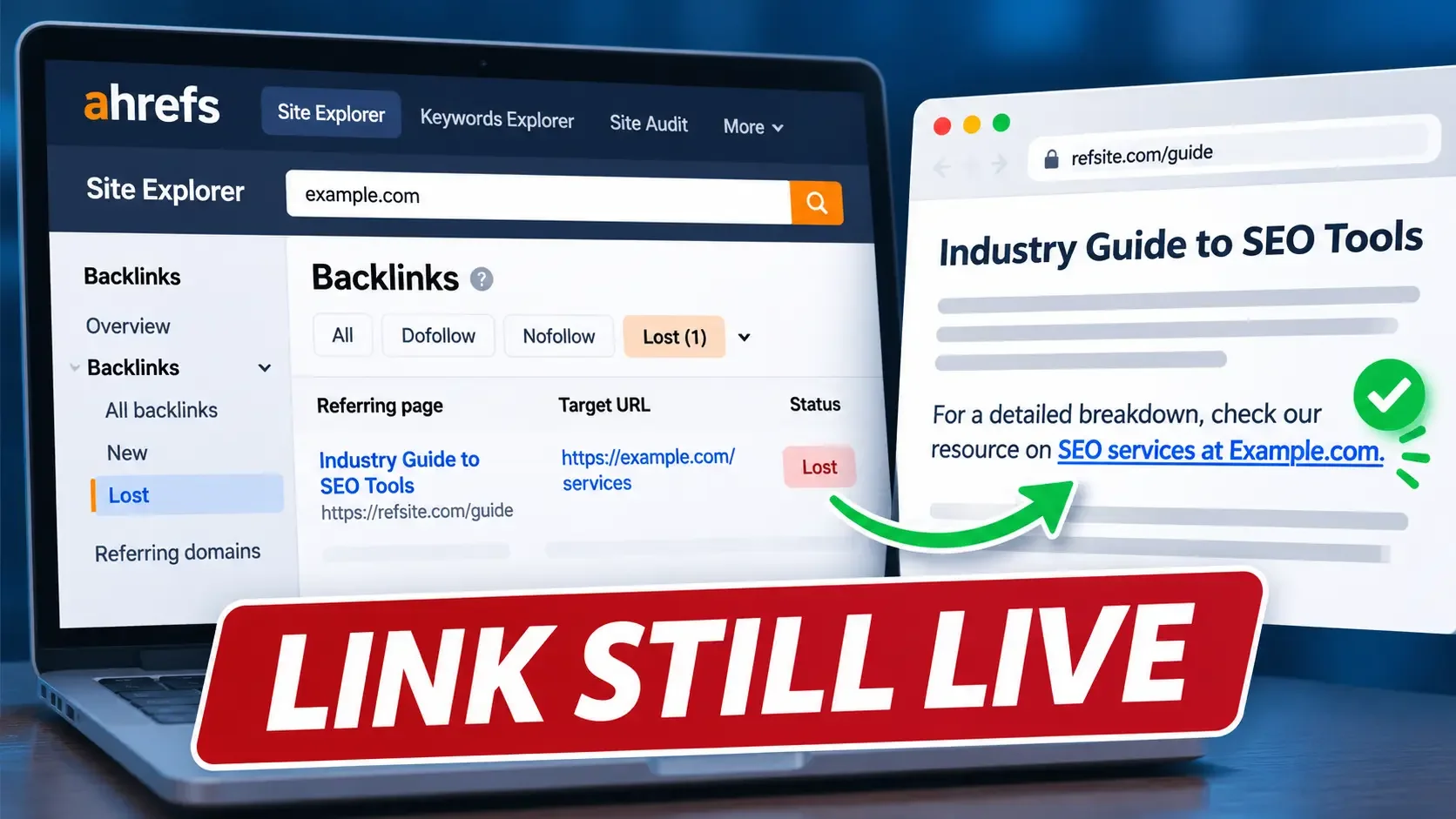
Ahrefs can mark a backlink as lost even when the referring webpage still displays a working link to your website. The link opens normally in your browser but Site Explorer reports it as Lost, making it appear that a valuable referring link has disappeared.
Start by checking the lost reason in Ahrefs Site Explorer. A backlink may appear lost because the referring page redirected, became inaccessible during crawling, changed its canonical URL or linked to a slightly different destination.
The correct solution depends on what Ahrefs detected during its last crawl. Some cases require fixing a broken URL or contacting the referring website, while others need no changes because the backlink remains functional.
Check the Lost Reason
Open Ahrefs Site Explorer and enter the website or page whose backlinks you want to investigate. Navigate to Backlinks → Lost and locate the backlink that still appears on the referring website.
Check the Status label associated with the entry. Ahrefs uses different labels to explain why it no longer counts a backlink and these reasons help identify where the investigation should begin.
For example, a 301/302 redirect status means the referring page now redirects elsewhere. A Not canonical anymore status means Ahrefs identified another canonical URL, while Link removed indicates that its crawler did not find the expected hyperlink.
These statuses do not always mean the same thing to website visitors. A link may continue working normally even when Ahrefs no longer associates it with the original referring URL.
Use the Status filter to narrow the report if several backlinks have disappeared. Record the referring URL, target URL, reported status and available crawl information before changing anything.
If the link is still visible, compare the live webpage with the specific reason Ahrefs reported. This helps avoid unnecessary changes to a functioning website.
Compare the Exact URLs
A backlink may appear unchanged to visitors even when its underlying destination has changed. Ahrefs treats different URL variations as separate addresses, so small differences can affect how backlinks appear in its reports.
Open the referring webpage and locate the link that Ahrefs marked as lost. Right-click the hyperlink, copy its actual destination and compare that address with the target URL shown in Site Explorer.
For example, Ahrefs may have previously recorded a backlink pointing to https://www.example.com/services, while the referring page now links to https://example.com/services/. Both URLs might display the same content after redirection but they are not identical addresses.
Check whether the updated destination already appears as a separate backlink in Site Explorer. If it does, the original backlink record may have changed because the link now points to a different URL variation.
Do not modify a working website address simply to restore an older backlink entry. The more important question is whether the referring page still links to the correct content and whether visitors reach the intended destination.
If the current link points to an outdated or incorrect page, identify the appropriate replacement URL. Where another website controls the backlink, request an update only when the existing destination genuinely needs correction.
Inspect Redirected Pages
Ahrefs may report a backlink as lost when the referring page starts redirecting to another address. This frequently happens after websites migrate to HTTPS, change their preferred hostname or move articles into different directories.
If the lost reason is 301/302 redirect, open the referring URL recorded in Ahrefs. Follow the redirect to its final destination and check whether the replacement page still contains your backlink.
Consider a hypothetical software publication that moves an article from https://example.org/blog/report to https://example.org/research/report. The original URL redirects successfully, and the new article still links to your website.
Ahrefs may mark the backlink from the old URL as lost because that address no longer serves the article directly. The replacement URL may appear as a separate backlink after Ahrefs crawls and processes it.
In this situation, restoring the original article URL is usually unnecessary. Check the final page and look for its backlink record before concluding that the referring website removed your link.
A different problem occurs when the redirected page no longer contains the backlink. If the new article remains relevant to your content, consider contacting the publisher to ask whether the link can be restored.
Check Broken Redirects
Ahrefs also uses a Broken redirect status when its crawler can not successfully follow a redirect associated with a backlink. This may involve an invalid destination, an interrupted redirect chain or a temporary server error.
Open the link and follow its redirects to the final destination. If the redirect works in your browser, remember that Ahrefs may have encountered an error during an earlier crawl.
For example, a redirect chain might have returned an HTTP 503 error while the referring website was undergoing maintenance. The chain may work normally after maintenance ends, even though Ahrefs still shows the earlier failure.
If you control the affected redirect, inspect its configuration and correct any confirmed error. The redirect should lead to an appropriate working page without introducing unnecessary intermediate steps.
If another website controls the broken redirect, provide its administrator with the affected address and intended destination. Avoid requesting changes when the redirect works correctly and the reported problem appears to have been temporary.
Review Canonical URLs
A backlink can remain visible while Ahrefs stops counting it because the referring page declares another canonical URL. Ahrefs labels this situation Not canonical anymore.
Open the referring page and inspect its canonical URL using the page source or a suitable browser inspection tool. Compare that address with the referring URL shown in the lost-backlink report.
For example, a publication may have two accessible versions of an article. The version containing your backlink identifies another article URL as its canonical version, so Ahrefs may no longer count the link from the original page.
Open the canonical version and check whether it contains the same backlink. If it does, search for that canonical URL in the current Backlinks report.
If the canonical page no longer links to your website, determine whether the publisher intentionally changed or consolidated the article. A relevant outreach request may be reasonable but the backlink should not be restored at the expense of the publisher's intended content structure.
Do not ask a website owner to remove a legitimate canonical tag merely to recover an Ahrefs metric. Canonical settings affect how duplicate or alternative pages are handled and should reflect the website's actual requirements.
Check Noindex and Dropped Pages
Ahrefs can also mark a backlink as lost when the referring page becomes noindexed. Its Noindex status indicates that the crawler detected a noindex directive during its most recent visit.
A noindexed page can remain accessible to visitors and continue displaying external links. However, Ahrefs does not count backlinks from those pages in its backlink reports.
Open the referring page and inspect its robots directives. If you control the page, confirm whether the noindex setting was intentional before making changes.
If another publisher owns the page, do not assume the directive is incorrect. Some pages are deliberately excluded from search indexing, and changing that decision simply to recover a backlink metric may be inappropriate.
Another possible status is Dropped, which means Ahrefs removed the referring page from its index. This can happen because of duplicate content, prolonged accessibility problems, crawler restrictions or other indexing-quality considerations.
For example, a small business directory might continue displaying your backlink while Ahrefs stops maintaining the directory page in its backlink database. The hyperlink remains accessible, but Ahrefs no longer counts it.
Check whether the referring page is live and whether its hyperlink reaches your website. If both work correctly, there may be no practical repair to perform.
Ahrefs does not guarantee that every accessible referring page will remain in its index. Avoid changing your website or contacting publishers solely because an otherwise functioning backlink has a Dropped status.
Investigate Crawl Errors
A webpage can load normally in your browser even though Ahrefs could not access it during an earlier crawl. Temporary server failures, crawler restrictions and security challenges can create this difference.
If the status is Not found or Crawl errors, inspect the referring URL and determine whether it currently responds successfully. Compare the live response with the problem recorded by Ahrefs.
For example, a website might temporarily return an HTTP 503 response during server maintenance. Ahrefs could mark backlinks from that page as lost because its crawler could not access the content.
Once the server resumes normal operation, visitors may see the article and its backlink without difficulty. Ahrefs can discover the link again during a later successful crawl.
If you manage the referring website, inspect available server logs and security settings around the affected crawl. Look for HTTP errors, blocked AhrefsBot requests or security challenges that prevented the crawler from accessing the page.
A firewall or bot-protection rule may be responsible when the page works for visitors but repeatedly denies access to Ahrefs. Investigate the specific restriction rather than disabling website security broadly.
If the restriction is accidental, apply the narrowest appropriate correction and verify that normal security protections remain active. If the referring website belongs to another publisher, the administrator may need to investigate the access problem.
Also distinguish Site Explorer crawling from Site Audit crawling. Ahrefs uses separate reporting systems for backlink discovery and technical website audits, so changing a Site Audit project's settings will not directly repair a lost backlink record.
If your actual problem concerns Ahrefs Site Audit discovering too few pages on your own website, BusinessTally's guide on Ahrefs Site Audit crawling too few pages covers that separate issue.
Check the Live Link
When Ahrefs reports Link removed, it means its crawler did not find the expected backlink on the referring page during the most recent crawl. The publisher may have removed the link, changed its destination or modified how the page displays it.
Open the referring article and locate the hyperlink. Copy its destination and compare it with the exact target URL shown in Ahrefs.
If the link now points to another page on your website, check whether the new destination is correct. The original backlink may appear lost even though the publisher updated it to a more relevant resource.
For example, a publication might replace a link to an outdated guide with a link to your newer article. Ahrefs can report the original target as lost while subsequently recording the new destination.
If the replacement works and remains relevant, there may be nothing to correct. Search for the updated target in Site Explorer before requesting changes from the publisher.
A different situation occurs when the hyperlink appears only after JavaScript runs. Ahrefs documents that some JavaScript-generated links may not be detected when its crawler does not render the relevant page content.
For example, a directory might load outbound links through JavaScript after the page opens. Visitors can see the link in their browsers but Ahrefs may not capture it during a crawl that does not render that content.
If you manage the referring page, inspect whether the link exists as a normal HTML anchor or is added later through JavaScript. A standard HTML hyperlink may be more straightforward for crawlers to discover when it fits the page's intended functionality.
Do not assume JavaScript caused the problem merely because the website uses it. Confirm how the specific hyperlink is delivered before changing a working page.
If another publisher controls the link, contact them only when you have identified a genuine destination or implementation problem. A backlink missing from an Ahrefs report does not automatically justify asking for technical modifications.
Verify the Backlink
After identifying the reported problem, verify the backlink's actual behaviour before judging the correction. Open the exact referring URL, locate the hyperlink and confirm that it reaches the intended destination.
Check redirects, canonical URLs and page accessibility according to the original lost reason. The expected outcome will differ depending on whether Ahrefs reported an inaccessible page, a changed URL, or a missing hyperlink.
If the problem involved a temporary crawl error, Ahrefs may record the backlink again after successfully revisiting the referring page. A redirected article may instead appear under its new URL.
Similarly, a backlink affected by a canonical change may be counted from the canonical page rather than the original referring address. Search for the current referring and destination URLs instead of expecting every old record to return.
Ahrefs updates backlink information through its own crawling process. Correcting a website issue does not guarantee that the Lost status will disappear immediately.
Do not repeatedly modify working redirects, links or canonical settings while waiting for the report to update. Confirm the live behaviour first, then review Ahrefs after the relevant page has been crawled again.
If the backlink remains marked Lost after another crawl, inspect its latest status. A changed reason may reveal that the original issue was resolved but a different condition now affects the record.
When the discrepancy remains unexplained, collect the referring URL, target URL, reported lost reason and available crawl information. Include the current link destination and any relevant redirect or canonical details.
Provide those details to Ahrefs Support if the documented checks do not explain the result. Avoid including private credentials or unrelated customer information in screenshots and diagnostic records.
The problem is resolved when you understand why Ahrefs reported the backlink as lost and have corrected any genuine access, redirect or hyperlink error. If the link already works and Ahrefs excludes it under its indexing rules, further website changes may be unnecessary.