
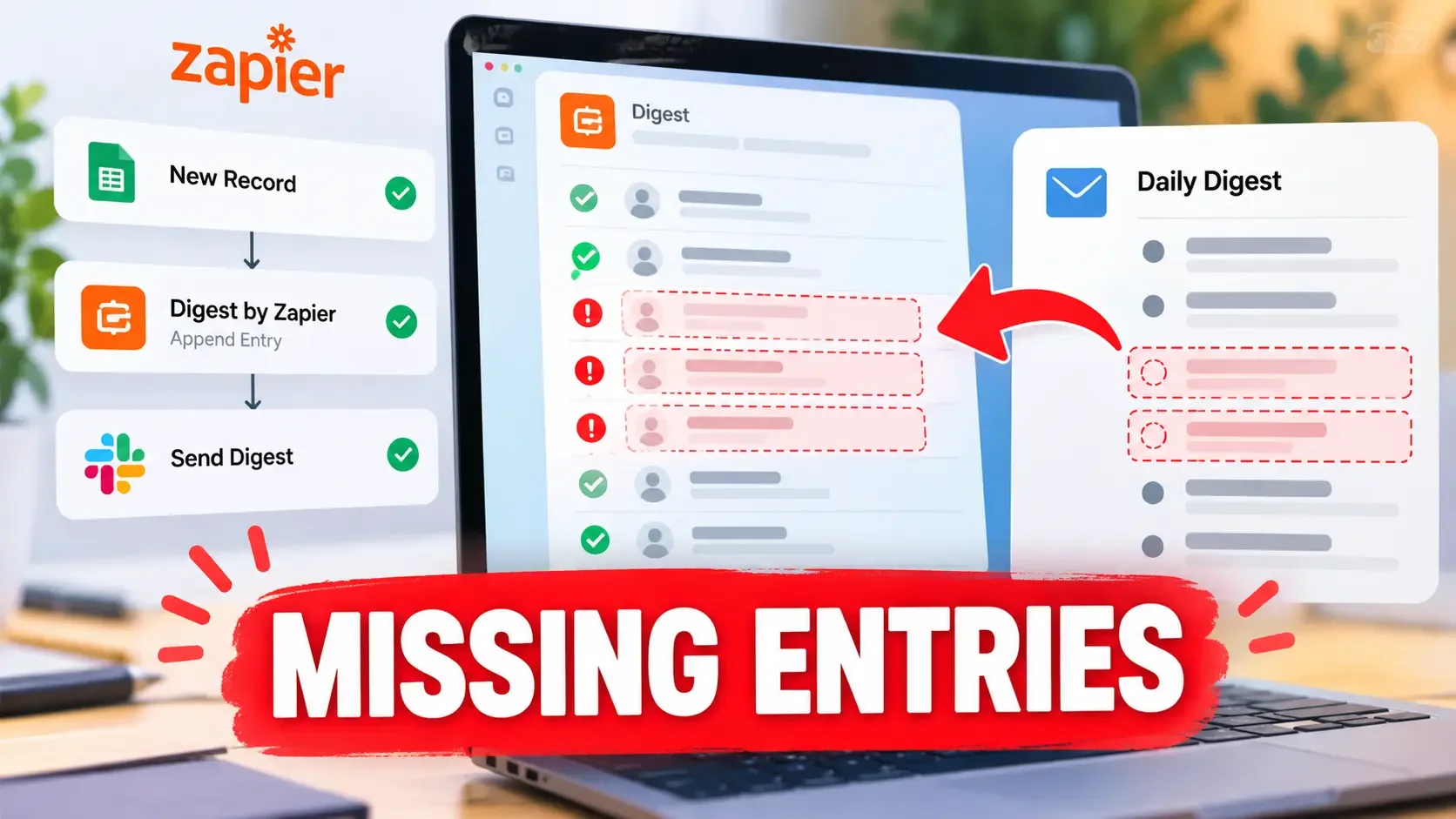
A Zapier Digest can collect records successfully but still deliver a report with several entries missing. You might expect 20 customer records in a daily digest, yet the final email or Slack message contains only 16, even though the individual Append Entry actions appear to have completed.
The missing records may never have reached the Digest action, arrived after the release, or been included in an earlier batch. The important task is to identify exactly where the records disappear before changing a workflow that may already be collecting data correctly.
Check If the Missing Entry Reached Digest
Open Zap History and locate a run associated with one of the missing records. Choose something identifiable, such as an order number, customer ID or spreadsheet row reference, so you can follow the same record throughout the workflow.
Select the Digest by Zapier action and inspect its Data In, Data Out, and execution status. Under Data In, find the Entry field and confirm that it received the information you expected to appear in the released digest.
For example, suppose order ORD-2084 is absent from a report containing other orders processed during the same period. Find the corresponding Zap run and check whether its Append Entry action received ORD-2084 along with the expected order information.
The findings should determine which part of the workflow needs attention. A successful overall Zap status is less useful than confirming what happened to the particular record that is missing.
| What Zap History shows | What to investigate |
|---|---|
| No corresponding run | The source record did not trigger this Zap |
| Run exists but Digest did not execute | Check where processing stopped |
| Digest received an empty Entry value | Inspect the mapped source field |
| Digest received the expected entry successfully | Investigate the release process |
If the Entry field is empty or contains incorrect information, compare it with the preceding step's Data Out. When the preceding step contains the expected value but Digest receives something different, open the Digest configuration and correct the Entry mapping using a current sample record.
If the record never triggered the workflow, the problem begins before Digest. For Google Sheets workflows where records stopped triggering after older rows were deleted, our guide to Zapier missing new Google Sheets rows after deleting rows explains that specific failure and how to investigate it.
However, if the Append Entry action completed successfully with the correct information, leave its mapping unchanged for now. The next question is whether that entry was available when the digest was released.
Check If the Entry Missed the Release
A successful Append Entry action does not guarantee that the record appeared in the release you expected. The append and release operations occur separately and their execution order can determine which batch contains an entry.
Suppose a digest releases at 6:00 PM but a customer record enters the workflow shortly before that time. If its Append Entry action does not complete until after the release, the record may become part of the next collection period instead of the report that was already delivered.
Locate the affected append run and compare its execution details with the release that produced the incomplete report. If the available timestamps do not establish the exact order, inspect the individual step histories rather than assuming that the trigger time represents the append completion time.
Check If Another Zap Released the Digest
If the missing entry was submitted before the intended release, check whether another workflow released the digest earlier.
Open the Digest action and identify its configured Title. Then examine other workflows using the same digest, especially those containing a Release Existing Digest action or an automatic release configuration.
Zapier allows multiple workflows to contribute entries to a shared digest but recommends using only one workflow to release it. For threshold-based digests, the first release can contain the entries while subsequent releases return empty content; date-based releases can similarly prevent later workflows from producing another digest.
If another release occurred first, inspect its output for the records missing from the intended report. Finding those records in an earlier batch would explain why they were absent from the report you originally expected.
For manually released digests, also examine Delete Digest on Release. When enabled, this setting removes the stored records after release, so another release can not retrieve those same entries from the collection.
If competing releases caused the discrepancy, establish one designated workflow to control the release. Other workflows can continue contributing records, but they should not independently release the same digest before its intended reporting process finishes.
Check If Looping Released the Digest Too Early
A different timing problem can occur when Looping by Zapier processes multiple records before the digest is released.
Suppose a workflow retrieves 15 spreadsheet rows and appends each record through a separate loop iteration. The last-numbered iteration is configured to release the digest but some earlier iterations may still be processing their records.
Zapier confirms that loop iterations execute in parallel rather than sequentially. Consequently, the last-numbered iteration can reach the release action before another iteration has completed its Append Entry action.
This creates a possible execution-order problem even when every append action eventually succeeds. The following example illustrates how an entry can miss a release without its action failing.
| Time | Workflow activity |
|---|---|
| 10:00:01 | Customer A appended successfully |
| 10:00:02 | Customer B appended successfully |
| 10:00:03 | Last-numbered iteration starts the release |
| 10:00:04 | Digest released |
| 10:00:06 | Customer C finishes appending |
Customer C was not available when the digest was released, even though its append operation eventually succeeded. Its absence from that particular report would therefore reflect the execution sequence rather than an incorrect Entry mapping.
To verify whether this explains the missing records, compare the individual loop runs with the digest release. If some append operations finished afterward, change the workflow so that release execution does not depend on the last-numbered iteration finishing first.
A separate scheduled release workflow can provide additional processing time, but a fixed delay alone cannot guarantee that every iteration finishes. When complete batches are essential, the release should depend on confirmation that all expected append operations have completed.
Zapier's official explanation of Looping behaviour confirms this parallel execution model. This distinction matters because a loop's iteration number does not establish the order in which its actions finish.
Compare Digest Output With the Delivered Message
If the missing entry was appended before release and no competing release explains its absence, inspect the actual content generated by the digest. This determines whether the record was missing from the released collection or disappeared while being passed to the destination application.
The location of that content depends on whether the digest releases automatically or manually. Checking the wrong output field can make the investigation misleading, particularly when separate workflows handle collection and delivery.
For Automatically Released Digests
If the Digest action uses a Daily, Weekly, Monthly or Threshold frequency, Zapier's documented configuration uses the Current Digest field to pass the released content to the following action.
Open the relevant Zap run and inspect the Digest output associated with the release. Then examine the following action's Data In to determine whether it received the expected Current Digest content.
Zapier also documents that the first run can remain marked Delayed until an automatically scheduled digest releases. That status alone does not establish that an entry failed, so check the release history before treating it as an error.
For Manually Released Digests
If the Digest action uses Manual frequency, the release normally occurs through a separate Zap containing Release Existing Digest.
Open that release workflow in Zap History and inspect the Release Existing Digest action's Data Out. Look for Final Digest, which is the documented field used to pass manually released content into the following destination action.
Zapier explains both configurations in its Digest setup and release documentation. The distinction is important because the automatic and manual release methods expose different fields for delivering the collected content.
Identify Where the Content Becomes Incomplete
After finding the correct digest output, compare it with the Data In of the Slack, Gmail or other action responsible for delivering the report. This comparison identifies whether the missing records disappeared before release, between actions or during delivery.
| What you find | What to correct |
|---|---|
| Released digest already lacks the entry | Recheck append completion, digest selection and release timing |
| Released digest contains the entry but the next action receives incomplete content | Inspect field mapping and intermediate formatting actions |
| Destination receives the complete digest but the delivered message omits entries | Investigate the destination action's output and content handling |
For example, suppose Final Digest contains all 15 customer records but the Slack action's Data In contains only 12. The digest successfully returned the complete collection, so changing the append schedule would not address the discrepancy between the release and Slack.
Instead, inspect which field is mapped into the Slack message and whether another action transforms the digest before delivery. If the complete content reaches Slack but the delivered message displays fewer entries, examine that action's response and any applicable formatting or message limitations.
The reverse finding requires a different correction. If Final Digest already contains only 12 records, the destination cannot display the other three because they were absent from the content it received.
Verify All Digest Entries Are Included
After identifying and correcting the failure, test the workflow using a separate digest with a unique title. This avoids accidentally releasing production records that are still being collected and makes the test results easier to interpret.
Append three identifiable entries, such as ORDER-A, ORDER-B, and ORDER-C, and confirm that their actions complete successfully. Release the test digest after the required append operations finish, then compare its actual output with the message received by the destination.
If the original problem involved multiple workflows contributing to one digest, test the corrected release arrangement with those workflows. If it involved parallel loop execution, reproduce that processing pattern and confirm that the release does not occur before the expected entries finish appending.
A successful small test establishes that the tested configuration works, but it does not guarantee identical results for larger batches. Repeat the relevant conditions when necessary, particularly if the missing entries occurred only when multiple records were processed simultaneously.
Previously missing records may also require separate recovery because correcting future releases does not automatically rebuild an incomplete report. Compare the original source records with the delivered digest, identify which entries were genuinely absent and avoid appending records that were already included.
The correction is confirmed when every expected record appears in the intended digest release and reaches the destination without omissions. Comparing the original Entry data, the released digest content and the destination's received input provides the evidence needed to establish that the missing-entry problem has been resolved.