
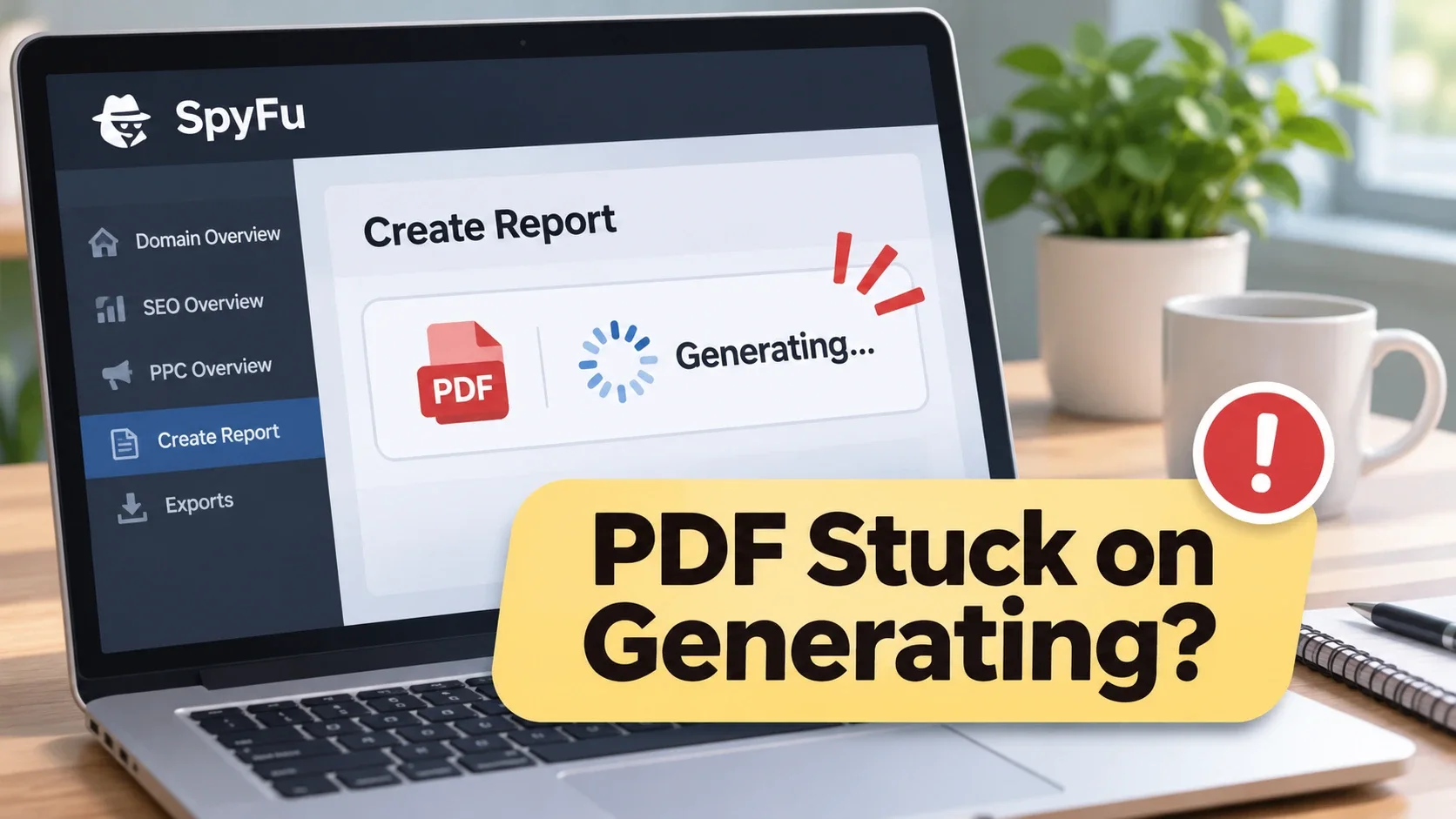
If your SpyFu PDF export is stuck on Generating, first check whether the file has already been created. Open Account Settings → Exports and look for the report you recently requested. If the PDF appears there, try opening it directly rather than submitting another generation request.
If no report is available and the Generating indicator remains on the screen, create a basic PDF from Domain Overview using the default settings. This helps determine whether the failure involves your original report configuration or the PDF-generation process itself.
Step 1: Check the Existing Export
Before refreshing SpyFu or clicking Generate PDF again, check whether the original attempt produced a file. An export that does not open automatically may still be available through your account.
SpyFu confirmed in its October 27, 2026 release notes that created exports are listed in the Exports folder under Account Settings. Checking this location first can prevent unnecessary duplicate reports.
Find Your PDF
Keep the original reporting tab open and use another tab to check the export.
Sign in to your SpyFu account.
Open Account Settings → Exports.
Look for an export associated with your recent reporting attempt.
If a matching file appears, open it and inspect the contents.
If the PDF opens successfully, the original export was created despite the reporting interface appearing stuck. You can use the existing document without restarting generation.
If the export is listed but cannot be opened, record any error displayed when retrieving it. The remaining problem may involve accessing the generated file rather than creating it.
If no matching export appears, return to the original reporting tab. Check whether the process has completed or whether Generating remains visible.
When the process remains stuck and no completed export is available, continue to Step 2. Do not repeatedly submit the same report without changing anything, because additional attempts will not establish why the first one failed.
Step 2: Generate a Basic PDF
The next step is to test whether SpyFu can generate a report without the configuration used in your original attempt.
SpyFu supports PDF creation from several research pages, including Domain Overview, SEO Overview and PPC Overview. Its report builder allows you to select individual sections and choose available delivery options.
For troubleshooting, use a fresh report with default sections. This creates a useful comparison against your failed export.
Run a Test Export
Sign in to SpyFu and search for the domain used in your failed report.
Open Domain Overview and confirm that the research data appears.
Click Create Report to open the PDF configuration.
Keep the default report sections selected.
Avoid optional customization or recurring scheduling.
Choose an available one-time PDF delivery method.
Click Generate PDF once and check whether the process completes.
SpyFu places Create Report directly on certain overview pages. On other supported research pages, the option may appear inside the Export menu.
If the basic PDF generates successfully, the current reporting workflow is functioning under at least one configuration. The next step is to compare the successful report with your original settings. If the basic report also remains stuck, continue to Step 3 and test another report type.
If Create Report itself fails to open, skip to Step 4. A report builder that never opens requires browser and interface troubleshooting rather than PDF-generation comparisons.
This process applies to SpyFu's current PDF reporting system. If you are trying to open an old Recon Files template instead, our guide to SpyFu Recon report templates not loading explains the separate replacement procedure for that retired feature.
Step 3: Identify the Failing Report
Once you have tested a basic PDF, determine whether the problem follows a particular configuration, research page or domain.
The most useful approach is to change one condition at a time. Otherwise, a successful export may not reveal which difference caused the reporting process to work.
If the Basic PDF Works
Return to the report configuration that originally failed and compare its selected sections with those in your successful test.
Start with the default settings and restore one required section or customization option. Generate another PDF and check whether the process completes before adding more settings.
If the report continues working, restore the next required section and repeat the test. When the export becomes stuck after a particular change, return to the last successful configuration and repeat that change to confirm the result.
For example, suppose a Domain Overview PDF generates with its default sections but repeatedly gets stuck after you add a particular section. Record the affected selection and check whether the same behaviour occurs on another attempt.
This does not prove that the selected section contains a software defect. However, it identifies a reproducible difference that may help explain the failure.
If your original report uses filters, check the underlying research page as well. Remove optional filters temporarily, confirm that the intended data appears and generate another PDF.
When the report works after changing a filter, restore the required conditions individually to determine whether the failure consistently returns.
If the Basic PDF Also Fails
When the default report remains stuck, test whether another supported research page can generate a PDF.
Open SEO Overview for the same domain.
Confirm that its research information is visible.
Click Create Report and keep the default sections.
Generate the PDF using the same delivery method.
If it also fails, repeat the original report type with a different domain.
These comparisons can help identify whether the failure affects a particular report type or occurs across multiple PDF-generation attempts.
| Troubleshooting result | Next action |
|---|---|
| Default PDF works, customized PDF fails | Restore custom settings individually. |
| Domain Overview fails, SEO Overview works | Examine the failing report's sections and filters. |
| One domain fails, another works | Compare the source data and report configuration. |
| All basic reports remain stuck | Test the browser session in Step 4. |
If another report type works, focus on the configuration and research data associated with the failing report. There is no reason to change unrelated browser settings before investigating that difference.
However, if every basic report remains stuck across the tested pages and domains, proceed to the browser checks. Repeating the same configuration comparisons is unlikely to provide useful additional information.
Step 4: Test the Browser Session
When different PDF reports remain stuck on Generating, check whether the problem occurs outside your normal browser session.
Browser extensions, stored website data and session-related interference can sometimes affect web applications. However, these are possible explanations rather than confirmed causes of SpyFu's PDF-generation problem.
Start with private browsing because it provides a useful comparison without changing your existing browser settings.
Try Private Browsing
Open an Incognito window in Chrome or Edge or a Private window in Firefox. Sign in to the same SpyFu account and open the research page used in your unsuccessful basic export.
Keep the domain, report sections and delivery method unchanged. Generate another PDF and compare the result with your regular browser session.
If the report generates successfully in private browsing, investigate the extensions and stored website data associated with your normal browser. Temporarily disable extensions that block scripts or modify website requests. Refresh SpyFu and repeat the same export.
If the PDF now generates successfully, re-enable your extensions individually until you identify which one is associated with the failure. You can then adjust that extension rather than permanently disabling unrelated browser features.
Refresh the SpyFu Session
If disabling extensions does not help, sign out of SpyFu and clear only its stored cookies and cached site data through your browser settings.
Sign in again, return to the same research page and attempt another basic PDF export. Clearing site data may remove your current login session, so make sure you can access your account before performing this check.
If the export continues failing, open the same SpyFu account and research page in another updated browser.
When the PDF generates successfully in the second browser, you can continue using that browser while investigating the original environment.
If the same export remains stuck across browsers, the failure is less likely to be specific to one browser profile. Record this result instead of repeatedly clearing cookies or reinstalling the browser.
At this point, you have tested the report configuration, other research pages and browser environment. If Generating still remains visible without producing a file, proceed to Step 6.
However, if the generation indicator disappears but no PDF opens or downloads, complete Step 5 first. That situation may involve retrieving a completed report rather than generating one.
Step 5: Check PDF Delivery
This step applies when a new troubleshooting attempt appears to finish generating but the expected PDF does not open, download or arrive through the selected delivery method.
It is different from Step 1, where you checked whether the original failed attempt had already produced a file. Here, you are investigating the outcome of a fresh generation attempt.
SpyFu supports opening generated PDFs directly in the browser for eligible premium accounts. Email delivery is also available, depending on the account and reporting options.
Check Browser Downloads
If you selected browser-based delivery, inspect your open tabs and look for a blocked pop-up notification.
When the browser indicates that a SpyFu window was blocked, allow the expected document and try retrieving it again. If no such notification appears, do not assume that a pop-up blocker caused the problem.
You can also press Ctrl + J in Chrome or Edge to inspect recent downloads.
Look for a PDF associated with the new export attempt. If a completed download appears, open its saved location and inspect the document.
If the browser reports a failed download, record the displayed error before trying again. A failed browser download does not necessarily mean that SpyFu failed to generate the PDF.
Return to Account Settings → Exports and check whether the new attempt created an accessible file. If it appears, retrieve the existing export instead of submitting another generation request.
Check Email Delivery
If your SpyFu account provides email delivery, you can test whether the report arrives through that supported method.
Open Create Report, select the same research page and default sections and choose email delivery. Confirm the recipient address before generating the report.
Check the intended inbox and spam folder. If the PDF arrives and opens correctly, you have confirmed that the report can be generated and delivered through email.
If the email never arrives, check Exports for the new attempt. When neither method produces an accessible report, the delivery test has not resolved the original problem.
If the interface continues displaying Generating throughout these attempts, do not keep changing delivery settings. The unresolved issue may still be occurring before a completed PDF becomes available.
Step 6: What If the Export Still Fails?
If SpyFu continues displaying Generating after the basic report, configuration comparison and browser tests, the next meaningful action is to contact SpyFu support.
The remaining issue may involve the reporting service, account-specific behaviour or data associated with the report. The previous tests cannot establish the underlying cause with certainty, but they provide useful evidence for further investigation.
Before contacting support, identify the exact point where the process stops.
Collect the Failure Details
Prepare the following information:
Research page: The SpyFu page and domain used for the export.
Failure point: Whether Generating remains visible or an error eventually appears.
Report configuration: The selected sections, filters and delivery method.
Report comparisons: Whether another research page or domain generates successfully.
Browser results: Whether private browsing or another browser changes the outcome.
Export history: Whether the expected file appears under Account Settings → Exports.
Include the approximate time of the failed attempt and a screenshot showing the generation state. If an error message appears, preserve its exact wording.
For example, if a basic Domain Overview PDF fails in two browsers but an SEO Overview PDF generates successfully, describe that difference. It gives support a more specific condition to investigate.
Contact SpyFu through its official Help Center and provide the information you collected.
If the failure occurs only with a customized report, include the configuration that consistently reproduces the issue. Avoid sharing passwords or other sensitive login information.
If You Need the Data Immediately
If you need the report for a client or internal presentation, check whether the underlying SpyFu research page remains accessible.
When the source data loads normally, you may be able to export supported tables in another available format or prepare a temporary summary from the research page.
This is a workaround rather than a complete PDF repair. A CSV export may preserve numerical information but will not necessarily reproduce the charts, layout or formatting of the original PDF.
If another supported PDF report generates successfully and contains the information required for your immediate task, you can use it temporarily.
However, do not treat a different report as an equivalent replacement when important research data is missing.
Confirm the PDF Works
The issue is resolved when SpyFu completes the export, produces an accessible PDF and includes the intended research information.
Open the document and verify that the domain, charts, tables and required report sections are present. If you removed filters or customization during troubleshooting, restore the necessary settings and generate another PDF.
For recurring reports, confirm that the one-time export works before relying on scheduled delivery. Review the schedule and recipient addresses separately under Account Settings → Scheduled PDF Reports.
If PDF generation remains stuck across browsers, domains and basic report configurations, repeating identical attempts is unlikely to help. Provide SpyFu support with your test results so the unresolved failure can be investigated without repeating unsuccessful troubleshooting steps.