
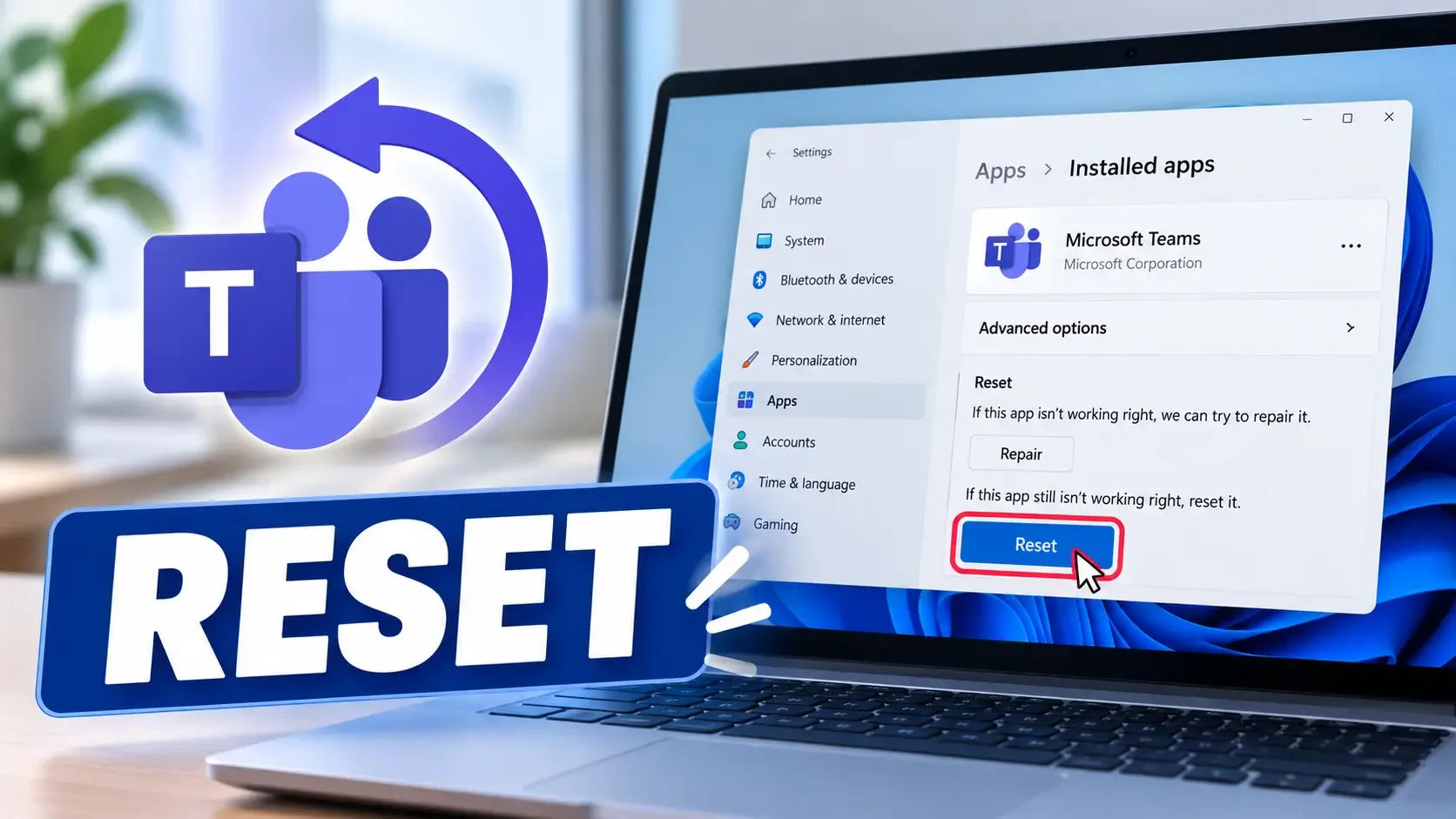
Microsoft Teams may continue freezing, crashing, or failing to open even after you use the Repair option in Windows 11. If Repair completes but the same problem remains, Windows provides a Reset option that removes local application data without uninstalling Teams.
To reset Microsoft Teams, open Settings > Apps > Installed apps, find Microsoft Teams and select Advanced options > Reset. This clears locally stored app data, including personalization settings and allows Teams to rebuild its cache when you restart it.
Reset Microsoft Teams After Repair Fails
Microsoft recommends using Reset when the Windows Repair option is unavailable or does not resolve an application problem. For the new Microsoft Teams desktop client, you can perform this reset directly through Windows 11 Settings.
Before starting, save any important unsent work and close Teams completely. If the Teams icon remains visible in the taskbar notification area, right-click it and select Quit.
Follow these steps to reset the application:
Open Windows 11 Settings. Press Windows + I on your keyboard, then navigate to Apps > Installed apps.
Find Microsoft Teams. Enter
Microsoft Teamsin the Installed apps search field. Locate the new Microsoft Teams desktop application in the results.Open Advanced options. Select the three-dot menu beside Microsoft Teams and choose Advanced options.
Find the Reset section. Scroll down until you see the Repair and Reset controls. Since Repair has already failed to resolve the problem, select Reset.
Confirm the reset. If Windows displays a confirmation prompt, select Reset again. Allow Windows to finish the operation before reopening Teams.
Restart Microsoft Teams. Open Teams from the Start menu and sign in again if prompted. Give the application time to initialize because its local cache must be rebuilt.
Once Teams opens, repeat the action that previously caused it to freeze, crash or become unresponsive. If the original problem no longer occurs, the reset has worked and no additional cache-clearing steps are necessary.
What Happens to Teams When You Select Reset?
Resetting Microsoft Teams removes local application data, including personalization settings configured in the desktop client. You may need to sign in again or adjust certain preferences after restarting the application.
The reset does not uninstall Teams or delete chat and channel messages stored in your Microsoft 365 account. Those conversations are maintained through Microsoft's cloud services, although any unsent content stored only in the local application should be saved before resetting.
Reset is not the same as Repair. Repair attempts to correct application problems without removing user data, while Reset clears the application's locally stored data.
Microsoft also advises against clearing the Teams cache to troubleshoot missing chat messages, disappearing channels, or incorrect notification counts. Those problems may have different causes and removing the cache can delete diagnostic logs without resolving them.
If the Reset Option Is Missing
If Advanced options does not appear beside Microsoft Teams, first confirm that you selected the new Teams desktop application. Windows may display several Teams-related entries and not every application provides the same recovery controls.
Microsoft confirms that some Windows applications do not offer Repair or Reset. If the expected option remains unavailable, Microsoft documents an alternative method for clearing the new Teams client's cache.
Clear the Teams Cache Manually
This procedure removes cached files from the new Microsoft Teams client without using the Windows Reset button. It is an alternative cache-clearing method, not an identical replacement for a full application reset.
Follow these steps carefully:
Quit Microsoft Teams. Close the application and right-click its taskbar notification icon to select Quit, if it is still running.
Open the Run dialog. Press Windows + R on your keyboard.
Enter the Teams cache location. Copy the following path into the Run dialog:
%userprofile%\appdata\local\Packages\MSTeams_8wekyb3d8bbwe\LocalCache\Microsoft\MSTeamsOpen the folder. Press Enter to access the cache directory.
Delete the cache contents. Select the files and folders inside this specific directory and delete them. Do not delete the parent Teams installation folders.
Restart Microsoft Teams. Open the application normally and allow it to rebuild the cache.
The directory above is the cache location Microsoft documents for the new Teams client on Windows. Older troubleshooting instructions using %appdata%\Microsoft\Teams refer to classic Teams and should not be substituted for this procedure.
If Windows cannot find the specified folder, do not delete files from another location without confirming that it belongs to the installed Teams client. On a managed work or school computer, your IT administrator may need to help identify the appropriate recovery procedure.
Check Whether the Teams Reset Worked
After restarting Microsoft Teams, check whether the problem that remained after Repair has disappeared. The result depends on the original failure, so test the same activity instead of assuming that completing Reset means the issue is resolved.
| Original problem | What to check after Reset |
|---|---|
| Teams would not open | Teams launches and reaches its normal interface |
| Teams kept crashing | The application remains open during the previously affected activity |
| Teams froze during startup | The application finishes loading and responds normally |
| Teams became unresponsive | The previously affected operation now works without freezing |
If Teams opens and the original problem no longer occurs, you can continue using the application normally. There is no reason to repeat Reset or manually delete its cache.
If the same failure continues, another reset is unlikely to help without identifying what is causing the problem. Record any error message and the exact behaviour you observe, particularly if you need assistance from your organization's IT administrator.
The reset is successful when Microsoft Teams starts normally and the problem that remained after Repair no longer occurs. If that happens, no further recovery steps are needed.