
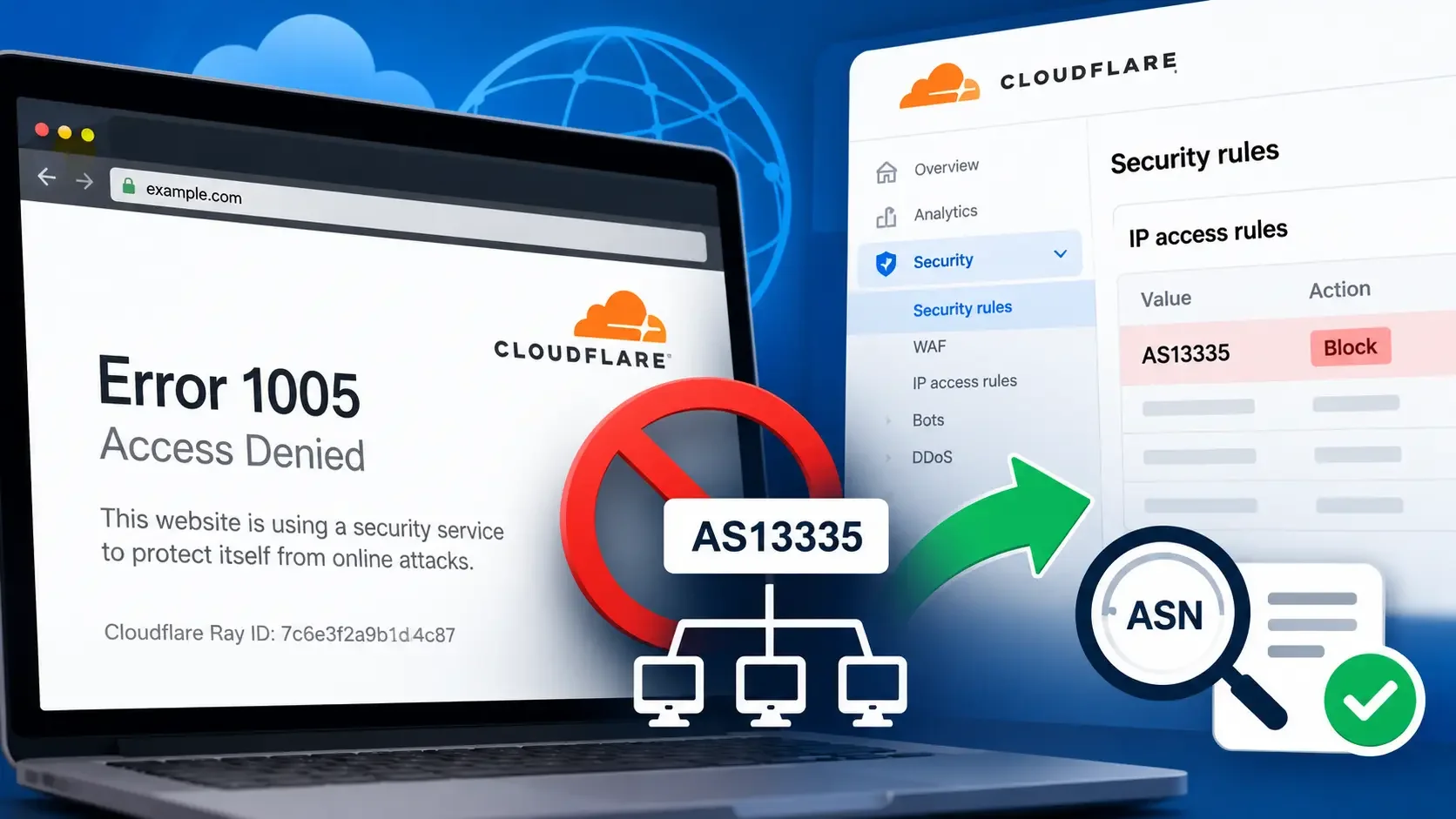
A visitor reports that your website displays Cloudflare Error 1005 Access Denied but the same website opens normally for you. The visitor cannot reach the requested page and trying again produces the same restriction.
Cloudflare Error 1005 means the website has blocked the Autonomous System Number (ASN) associated with the visitor's network. This restriction is enforced through Cloudflare's security configuration, so resolving it requires identifying the blocked ASN, locating the responsible IP Access Rule and correcting that restriction.
Unlike a generic Cloudflare 403 error, where the blocking source must first be identified, Error 1005 points specifically to an ASN ban. If you manage the affected website, start with the blocked request rather than changing security settings without evidence.
Find the Request That Triggered Error 1005
The first step is to identify the request Cloudflare rejected. Ask the affected visitor for a screenshot of the Error 1005 page, including the Cloudflare Ray ID displayed near the bottom.
Also collect the visitor's public IP address, the affected URL, and the approximate time of the failed request. These details help distinguish the reported block from unrelated security events involving other visitors.
Sign in to your Cloudflare dashboard, select the affected website and open Analytics → Events to access Security Events. Depending on the dashboard interface, the Security Events page may also be accessible through Security → Events.
Set the reporting period to cover the failed request. If the screenshot shows a UTC timestamp, account for the difference between UTC and the timezone used when reviewing the events.
Use the Add filter option to search for the Ray ID. If the Ray ID is unavailable, select the IP address field, choose the equals operator and enter the visitor's public IP address.
When a matching event appears, expand its details and examine the security action, source IP address, ASN and the feature responsible for the block.
You need to establish which network Cloudflare denied and whether an IP Access Rule caused that denial. This information will determine which security setting needs attention.
If the Blocked Request Is Missing
A missing Security Events entry does not necessarily mean Cloudflare has stopped blocking the visitor. Cloudflare uses sampled event data, so an individual request might not appear even when the restriction remains active.
Narrow the reporting period around the failed request and repeat the search using the visitor's IP address. Confirm that you selected the correct website and that the search covers the actual time of the error.
If the event remains unavailable, use the visitor's public IP address to identify its ASN through an IP-to-ASN lookup. You can then investigate the configured ASN restrictions directly rather than relying on the missing event.
Locate the ASN Block in Cloudflare
Once you know the affected ASN, the next step is to find the security rule that blocks it.
An Autonomous System Number identifies a network operated by an internet service provider, hosting company or another organization. Cloudflare can block traffic based on this number, meaning multiple visitors using the same autonomous system may be affected.
For example, an ASN might be written as AS1423. When filtering Cloudflare Security Events by ASN, enter only the numerical value, 1423, without the AS prefix.
In the Cloudflare dashboard, open Security → Security rules and locate the existing IP access rules section.
Cloudflare displays this rule type in the Security rules interface when IP Access Rules have already been configured. If you do not see the section for the affected website, check whether the restriction was configured at the account level or whether you are viewing the correct account.
Examine the existing rules for an entry matching the visitor's ASN. Pay particular attention to rules with the Block action.
Check the Rule's Scope
Finding the same ASN in the rule list is not enough. You also need to confirm that the restriction applies to the website producing Error 1005.
Cloudflare IP Access Rules can be configured for an individual website or across an account. A website-level rule affects the selected website, while an account-level rule may apply to multiple websites managed under that account.
Inspect the matching rule's ASN value, action, scope and any description explaining why it was created. Compare these details with the blocked request identified earlier.
If the rule blocks the affected ASN and applies to the reported website, you have identified the likely source of Error 1005. When Security Events also identifies that rule as responsible for the request, the diagnosis is more conclusive.
Remove the ASN Restriction Safely
Before removing the rule, establish why the ASN was blocked. The restriction may have been introduced after malicious traffic, automated requests or repeated unwanted activity from the network.
Review any available rule notes and relevant security events. If the entire ASN was blocked unnecessarily, legitimate visitors may be losing access because their provider shares that autonomous system with unwanted traffic.
Once you have confirmed that the restriction is responsible and no longer justified, you can remove the matching rule.
Delete the Confirmed Blocking Rule
Return to Security → Security rules in the Cloudflare dashboard and open the existing IP Access Rules.
Follow this process:
Find the rule containing the affected ASN.
Confirm that its action is Block and that its scope includes the affected website.
Record the rule's details, including its ASN, scope and any note explaining the restriction.
Open the management controls for that rule and select the available deletion option.
Confirm the deletion and verify that the matching blocking rule no longer appears in the active configuration.
Only delete the rule after confirming that it is the intended restriction. Removing a rule at the account level may change access to several websites, not just the one associated with the original complaint.
Cloudflare also supports deleting an IP Access Rule through its API, but the dashboard is sufficient for administrators who can locate and manage the existing rule.
When the ASN Still Requires Protection
If the ASN was blocked because it generated genuinely malicious traffic, removing every restriction against that network might not be appropriate.
Instead, examine whether the original problem can be addressed with a more targeted security rule. For example, if the unwanted requests originated from specific IP addresses rather than the entire autonomous system, an appropriately scoped restriction may protect the website without blocking every visitor using that network.
Cloudflare recommends using custom rules for many IP-based and geography-based blocking requirements. However, any replacement rule should be based on the actual traffic involved, not an assumption about which addresses might be responsible.
Avoid creating an Allow rule for the entire ASN simply to bypass Error 1005. Cloudflare warns that allowing an ASN through IP Access Rules can bypass other security protections, including WAF Managed Rules, custom rules and rate limiting rules.
The intended correction is to remove the unnecessary denial while retaining security measures that still serve a legitimate purpose.
Verify Access From the Previously Blocked Network
After correcting the ASN restriction, ask the affected visitor to open the same URL using the internet connection that originally produced Error 1005.
This test must use the previously blocked network. Opening the website successfully from your own connection, another provider or a different VPN does not establish that the original restriction has been removed.
Ask the visitor to confirm whether the page now loads without displaying Error 1005. If possible, verify that the visitor is still using the same public IP address or ASN recorded during the initial investigation.
A successful request from that network provides practical confirmation that the reported restriction has been resolved.
If Error 1005 Still Appears
If the visitor continues receiving Error 1005, request a new screenshot showing the latest Ray ID and error time. Search Security Events again using the details from this new request rather than relying on the original blocked event.
Examine whether another IP Access Rule blocks the same ASN. A website-level rule may have been removed while an account-level restriction remains in effect or the original change may not have been saved successfully.
Confirm that the ASN associated with the new request matches the one you investigated. If the visitor's connection now uses a different autonomous system, the latest restriction may involve a different ASN.
If you have verified that the relevant ASN blocks have been removed but Cloudflare continues returning Error 1005, preserve the new Ray ID, visitor IP address, affected ASN and details of the rules already examined. The website owner can provide that information to Cloudflare Support for further investigation.
Confirm That the ASN Block Is Resolved
Cloudflare Error 1005 is resolved when the restriction responsible for blocking the visitor's autonomous system has been corrected and the visitor can access the website from the previously affected network.
The essential verification is not whether the website works for other people. It is whether the original blocked request can now succeed without restoring an unnecessary ASN-wide security restriction.